HomeCall documentation
HomeCall is a complete home-services booking and field-service script: customers check their ZIP code, pick a service, choose a real 2-hour arrival window, pay a deposit online and follow their technician on a live map. Your office plans the day on a drag-and-drop dispatch board, technicians work from an installable technician app, and invoices with on-site parts and labor, US sales tax and pay links close every job.
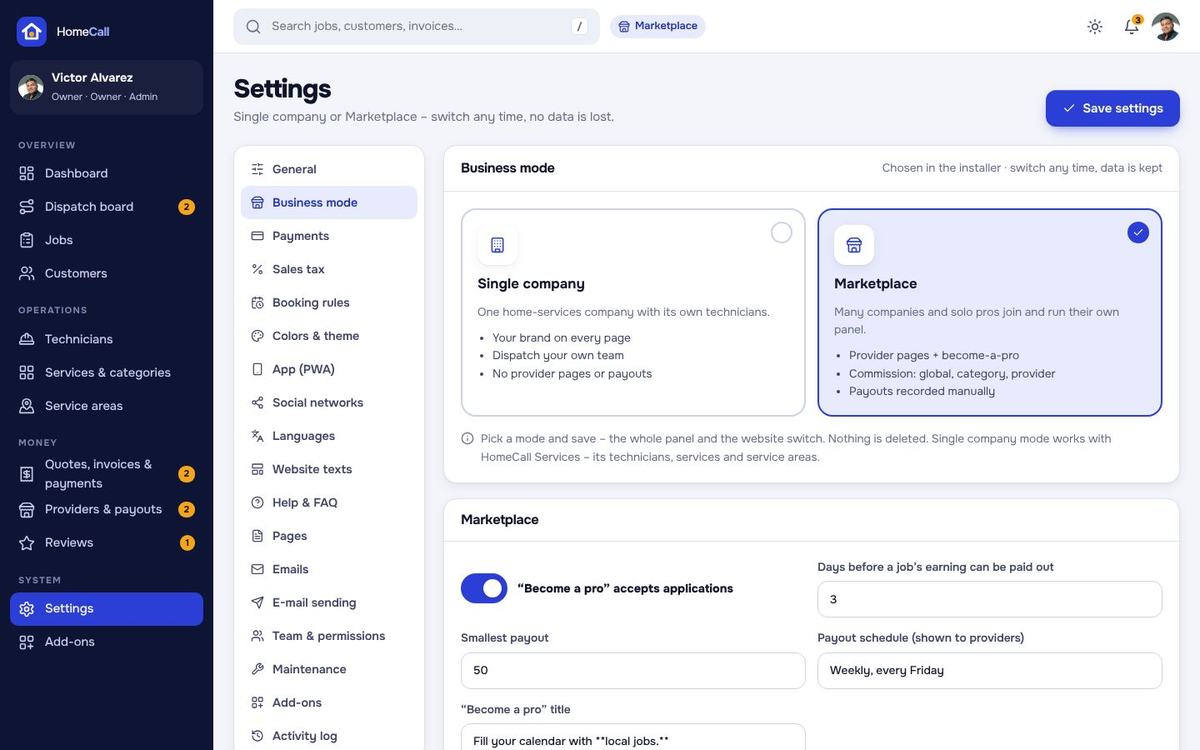
One installation is one website under your own name, colours and prices. In the installer you pick the business mode: Single company (one home-services company with its own technicians) or Marketplace (many providers join, each with their own technicians, and you take a commission). You can switch later in Admin › Settings › Business mode – no data is lost. Customers pay with Stripe, PayPal, Paystack, Razorpay, PayHere or bank transfer, or with cash and check collected on site.
Choose your path through this guide
Areas, roles & logins
/accountBookings with live tracking, repeat visits, invoices and pay links, quotes, reviews, addresses, profile, notification choices./techToday, job screen (check-in timer, checklist, photos, parts & labor, signature, collect payment), schedule, earnings. Installs as an app./proMarketplace mode: the provider's dashboard, dispatch board, technicians, services & area, quote requests, payouts and public page./adminDashboard, dispatch, jobs, customers, technicians, services, areas, billing, providers, reviews and every setting. The addresses can be changed (ADMIN_PATH, PROVIDER_PATH, TECH_PATH in .env).| Role | Where | What it can do |
|---|---|---|
| Admin (owner) | Admin panel | Everything, including payments, the team, add-ons and the business mode. Created by the installer. |
| Staff | Admin panel | Only the sections you tick: dashboard; dispatch board and jobs; customers; technicians; services, categories and areas; quotes, invoices and payments; providers, commissions and payouts; reviews; settings. |
| Provider | Provider panel | Marketplace mode: its own company only – its technicians, jobs, services, area, quotes, payouts and public page with its own social links. |
| Technician | Technician app | Its own jobs and offers: on the way, check-in, checklist, photos, parts and labor, signature, payment on site, schedule, time off, earnings. |
| Customer | Account | Books visits, pays invoices, compares and accepts quotes, chats with the technician, writes reviews. Guests create their account inside the booking flow. |
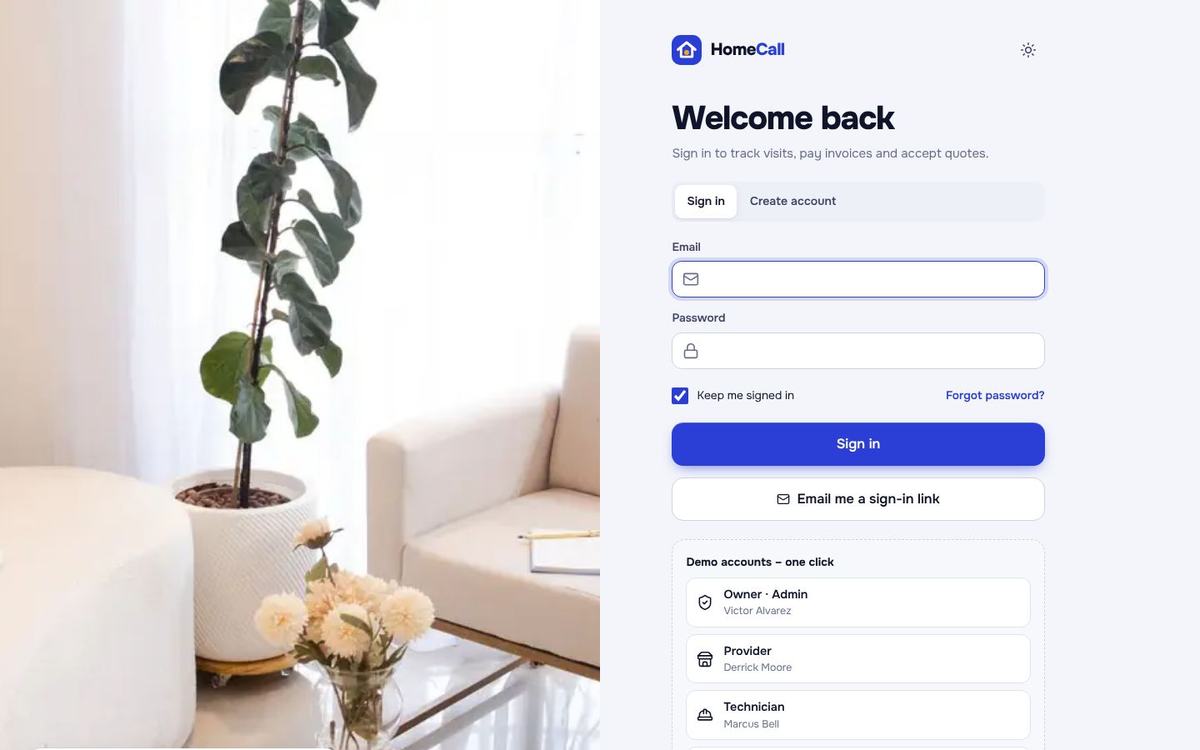
With the demo data the accounts below exist (password password). While demo mode is on, the sign-in page shows one-click buttons for them: /demo-login/admin, /demo-login/provider, /demo-login/technician and /demo-login/customer.
| Account | Role | |
|---|---|---|
| Victor Alvarez | victor.alvarez@example.com | Admin (owner) |
| Jordan Lee | jordan.lee@example.com | Staff: dashboard, dispatch, customers, technicians |
| Derrick Moore | derrick.moore@example.com | Provider – Queen City Plumbing Co. (Marketplace demo) |
| Marcus Bell | marcus.bell@example.com | Technician (plumbing) |
| Olivia Carter | olivia.carter@example.com | Customer |
Features
Server requirements
| Item | Needed |
|---|---|
| PHP | 8.3 or newer (8.4 works) |
| PHP extensions | pdo, pdo_mysql (or pdo_sqlite), mbstring, openssl, tokenizer, xml, ctype, json, fileinfo, curl, gd (with WebP), zip (add-ons and updates) |
| Database | MySQL 5.7+ / MariaDB 10.3+ (recommended) or SQLite 3 |
| Web server | Apache or LiteSpeed with mod_rewrite (the .htaccess files are included), or Nginx |
| Cron | One cron job every minute (reminders, releasing unpaid bookings, repeat visits, review requests, backups) |
| HTTPS | An SSL certificate – needed for the payment gateways, the installable app and the technician's location |
Everything needed to run is inside the package, including the vendor folder – no Composer, no Node and no build step on your server. The maps use free OpenFreeMap tiles; no map key is needed.
Package contents
HomeCall-v1.0.1.zip
├── homecall/           the script (upload this)
│   ├── app, bootstrap, config, database, resources, routes, storage, vendor
│   ├── addons/         installed add-ons (empty at first)
│   ├── public/         assets (CSS, JS, fonts, maps, demo photos), uploads, codester/ (online documentation)
│   ├── index.php + .htaccess   let the whole folder run from a document root
│   └── start-windows.bat       local start on Windows
├── documentation/      this guide (open index.html)
└── START-HERE.txt
Install on cPanel / shared hosting
- Create the domain. In cPanel Domains add your domain or sub-domain (for example
book.example.com) and note its document root, for example/home/user/book.example.com. - Create a database. cPanel MySQL® Databases: a new database, a new user with a strong password, and add the user to the database with All privileges.
- Choose PHP 8.3+. cPanel Select PHP Version or MultiPHP Manager; switch on the extensions listed under Server requirements.
- Upload. Upload
HomeCall-v1.0.1.zipwith the File Manager, Extract it, and move the contents of thehomecallfolder into the document root, so thatindex.php,.htaccess,app,public… sit directly inside it. Show hidden files in the File Manager so the.htaccessfiles are moved too.- The included
index.phpand.htaccesssend every request to thepublicfolder and block the program folders – nothing private can be opened from the browser. - Alternatively set the document root of the domain to the
publicfolder (Domains › Manage › Document root). Both ways work.
- The included
- Open your domain. The installer starts automatically (see The browser installer).
- Add the cron job in cPanel Cron Jobs, every minute (see Cron job).
- Switch on HTTPS (cPanel SSL/TLS Status → AutoSSL or Let's Encrypt), then Admin › Settings › General › Always use https://.
Install on a VPS (Nginx / Apache)
cd /var/www
unzip HomeCall-v1.0.1.zip
mv homecall /var/www/homecall
chown -R www-data:www-data /var/www/homecall
chmod -R 775 /var/www/homecall/storage /var/www/homecall/bootstrap/cache /var/www/homecall/public/uploads /var/www/homecall/database /var/www/homecall/addons
Nginx
server {
    listen 80;
    server_name book.example.com;
    root /var/www/homecall/public;
    index index.php;
    client_max_body_size 32M;
    gzip on;
    gzip_types application/json application/javascript text/css image/svg+xml application/manifest+json;

    location / { try_files $uri $uri/ /index.php?$query_string; }
    location ~ \.php$ {
        include snippets/fastcgi-php.conf;
        fastcgi_pass unix:/run/php/php8.3-fpm.sock;
    }
    location ~* \.(css|js|woff2)$ { expires 1y; add_header Cache-Control "public, immutable"; try_files $uri /index.php?$query_string; }
    location ~* \.(webp|png|jpe?g|svg|ico)$ { expires 30d; try_files $uri /index.php?$query_string; }
    location ~ /\.(?!well-known) { deny all; }
}
SSL: certbot --nginx -d book.example.com.
Apache
<VirtualHost *:80>
    ServerName book.example.com
    DocumentRoot /var/www/homecall/public
    <Directory /var/www/homecall/public>
        AllowOverride All
        Require all granted
    </Directory>
</VirtualHost>
Then open the domain in the browser – the installer starts – and add the cron job for the web server user: crontab -u www-data -e.
Install on Windows (XAMPP / Laragon)
- Install XAMPP or Laragon with PHP 8.3+ and start Apache and MySQL.
- Unzip the package and copy the folder
homecalltoC:\xampp\htdocs\homecall(Laragon:C:\laragon\www\homecall). - Create an empty database in phpMyAdmin (for example
homecall, collationutf8mb4_unicode_ci). - Open
http://localhost/homecalland follow the installer. - Or double-click
start-windows.batin the folder: it starts PHP's own web server onhttp://127.0.0.1:8000(PHP must be in the PATH).
The browser installer
On the first visit every address redirects to /install. The installer checks the server, writes the .env file with a new application key and sets up the database.
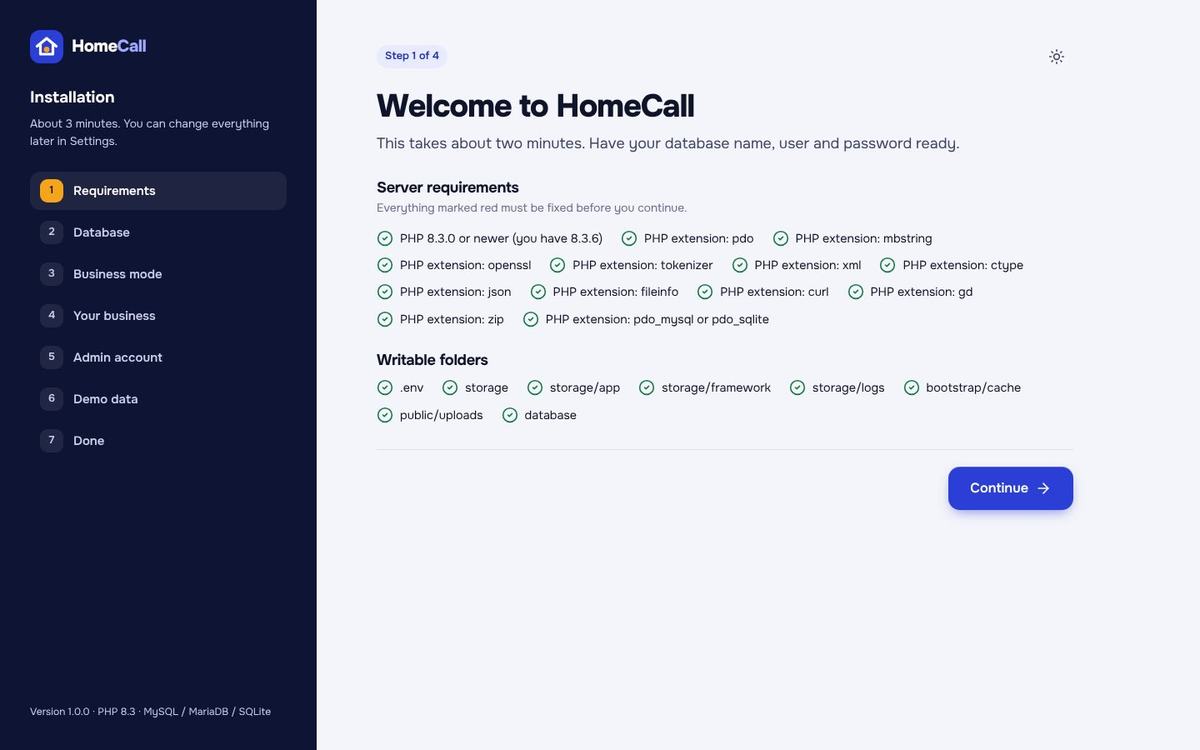
- Requirements – PHP version, extensions and writable folders, each with a clear OK / missing mark.
- Database – MySQL / MariaDB (host, port, name, user, password – the connection is tested) or SQLite (no settings).
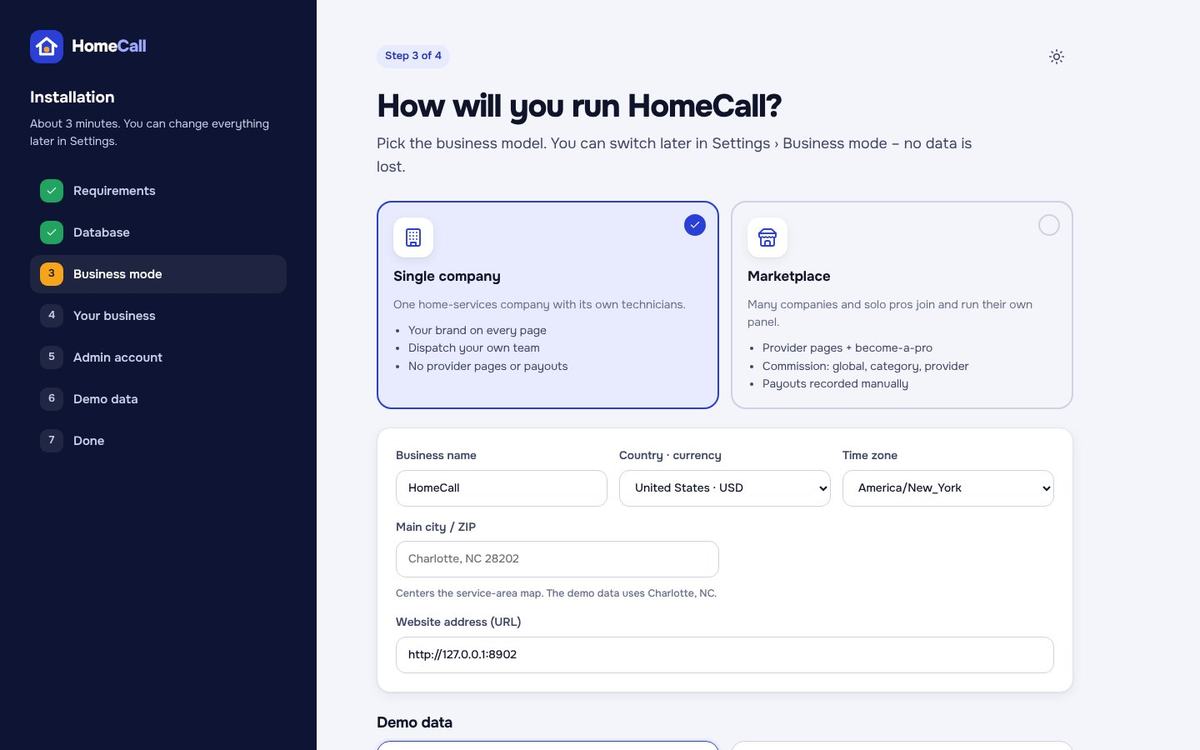
- Business mode – Single company or Marketplace, then business name, country and currency, time zone, main city / ZIP (centres the service-area map), the default commission (Marketplace), your admin account and Import demo data yes / no.
- Progress – the import runs in short steps with a progress bar, each step about a second, so it finishes on small shared hosting too. If the browser is closed, open the address again and press Retry: finished steps are not repeated.
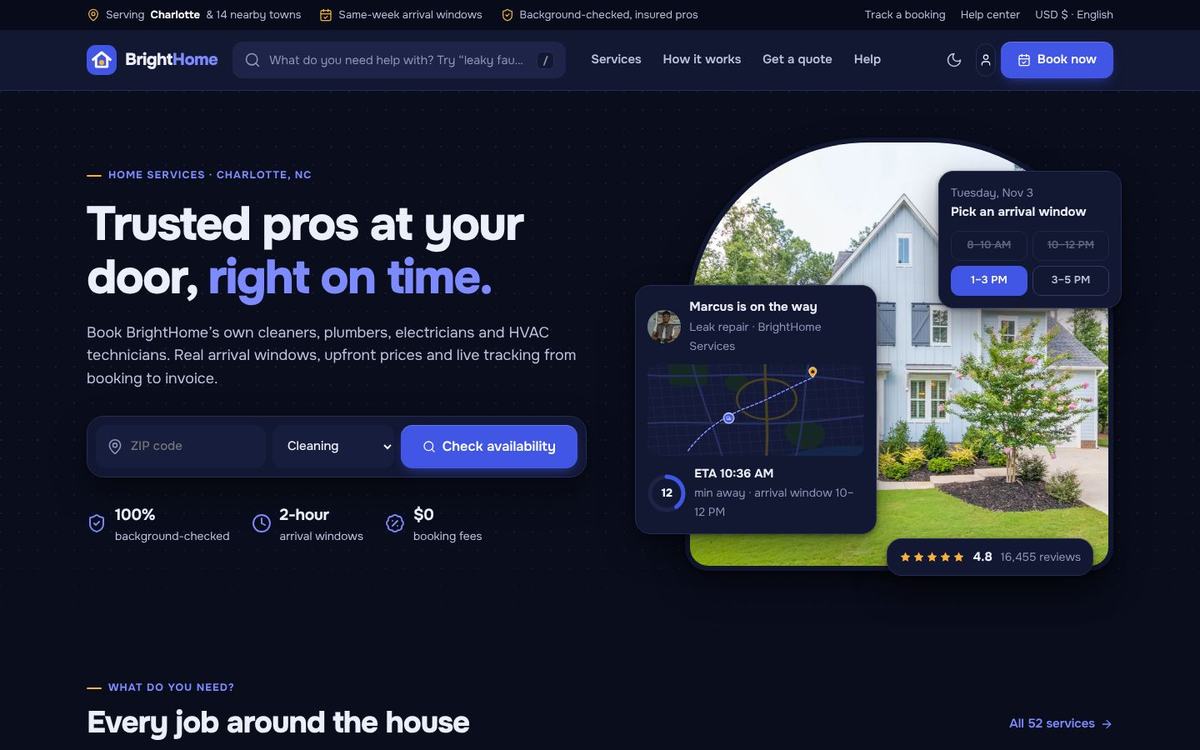
The demo data fills the mode you chose: 8 trades with 52 services (Marketplace) and their packages, add-ons and FAQs, service areas around Charlotte, NC, providers (Marketplace) or BrightHome Services (Single company), technicians with working hours and skills, customers, two years of jobs with invoices, payments and reviews, quote requests, payouts (Marketplace) and a live day on the dispatch board. The installer then locks itself (storage/app/installed.lock). To install again on a fresh database, delete that file and .env.
Start without demo data for your real business. You get the 8 service categories, the US sales tax table, the arrival windows, pages, help topics and e-mail templates, ready for your own services, area and team.
Cron job & scheduled tasks
Add one cron job that runs every minute (cPanel Cron Jobs → “Once Per Minute”):
* * * * * cd /home/user/book.example.com && php artisan schedule:run >> /dev/null 2>&1Use the real path of the folder that holds artisan. On some hosts the PHP binary has a version in its path, for example /usr/local/bin/ea-php83 or /opt/cpanel/ea-php83/root/usr/bin/php.
| Task | When | What it does |
|---|---|---|
hc:daily | every 10 minutes | Releases deposit bookings that stayed unpaid longer than the time you set, expires job offers and quotes, books the next repeat visits, sends the visit reminders the evening before and the review requests after a job. |
hc:prune | daily | Removes old notifications and activity rows. |
hc:backup | 2 AM, daily or Sundays | Compressed SQL backup when automatic backups are on. |
hc:demo-today, hc:demo-reset | 5 min / 6 h | Only in demo mode – keep the demo fresh. |
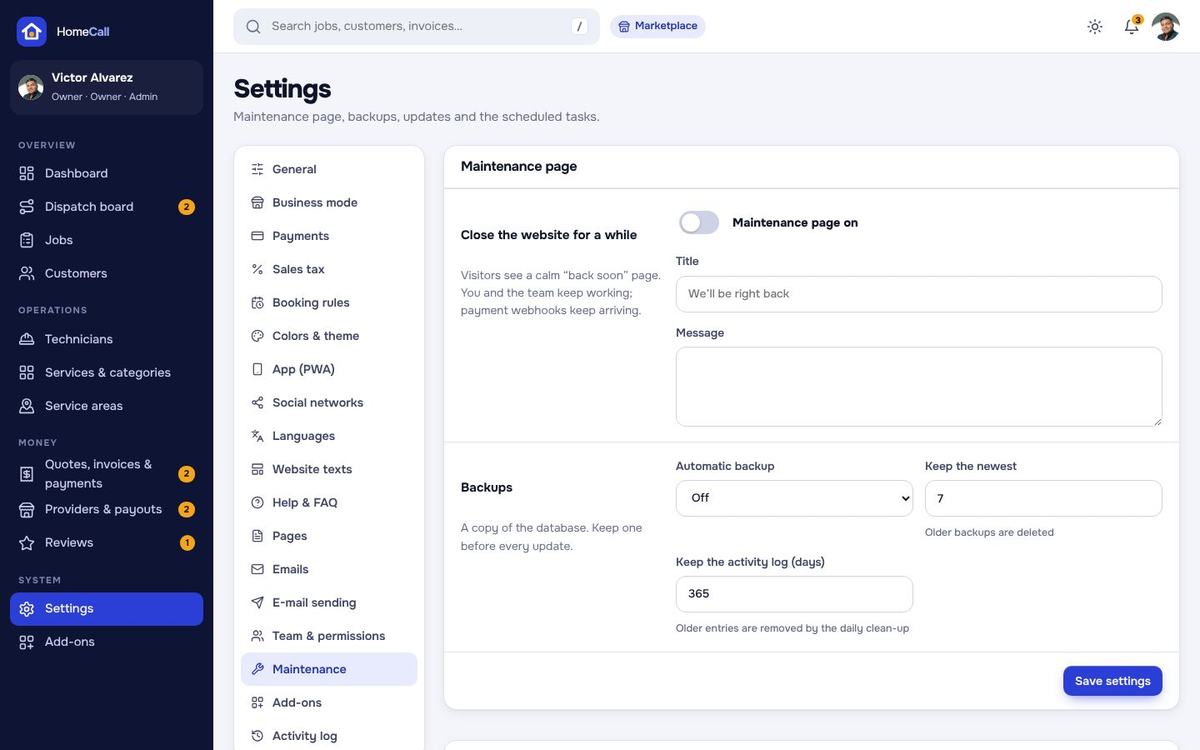
Admin › Settings › Maintenance shows when the cron job last ran.
First steps after installing
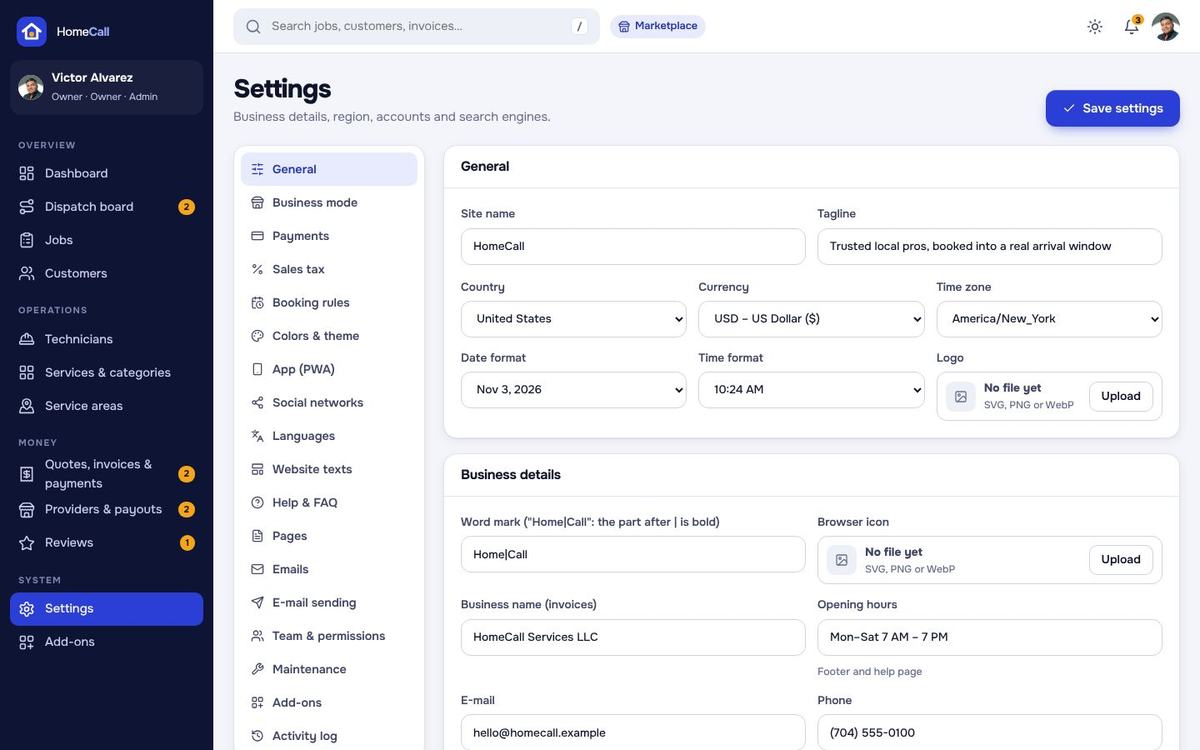
- Settings › General: business details, e-mail, phone, address, time zone, currency, logo.
- Settings › Business mode: Single company or Marketplace, applications, payout rules.
- Settings › Booking rules: arrival windows, lead time, travel buffer, deposit, cancellation window, reminders.
- Settings › Payments: switch on your gateways, paste the keys and copy the webhook URLs into the gateway dashboards.
- Settings › Sales tax: check the rate of your state and whether labor is taxed.
- Services & categories and Service areas: your services, prices and ZIP codes.
- Technicians: invite your technicians, set their skills, working hours and pay.
- E-mail sending: your SMTP account, then send a test. Then Social networks, App (PWA), Pages and Help & FAQ.
Single company or Marketplace
HomeCall runs in one of two business modes. You pick it in the installer and switch it any time in Admin › Settings › Business mode – bookings, customers, invoices and reviews stay.
| Single company | Marketplace | |
|---|---|---|
| Who does the jobs | Your own technicians | Providers (companies or solo pros) with their own technicians – plus your own team if you like |
| Public website | Your brand on every page, your technicians instead of provider names | Provider pages with a verified badge, “Top pros”, “Become a pro” |
| Panels | Admin, technician app, customer account | Admin, provider panel, technician app, customer account |
| Money | All payments are yours | Commission global / per category / per provider; provider balances and payouts you record |
| Quote requests | Answered by your office | Up to 3 providers that serve the ZIP send a quote (setting) |
| Technician earnings tab | Hidden | Shown – per-job share after commission, cash to hand in, payouts |
The public website
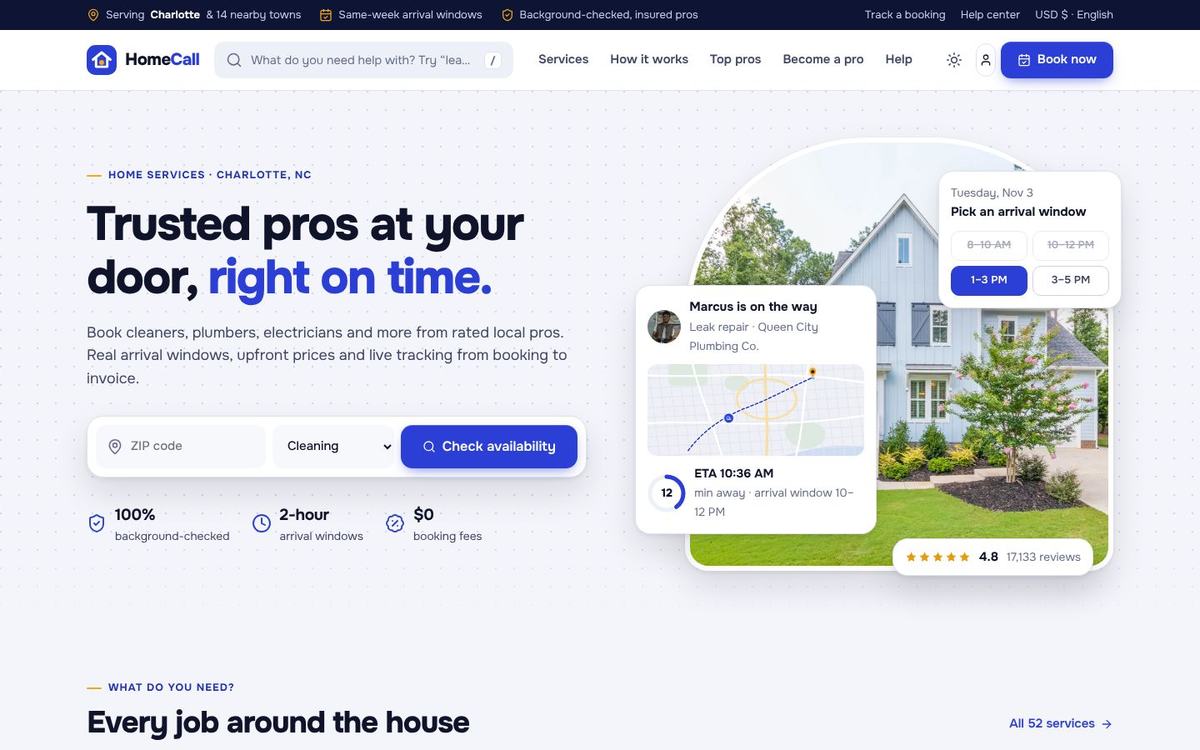
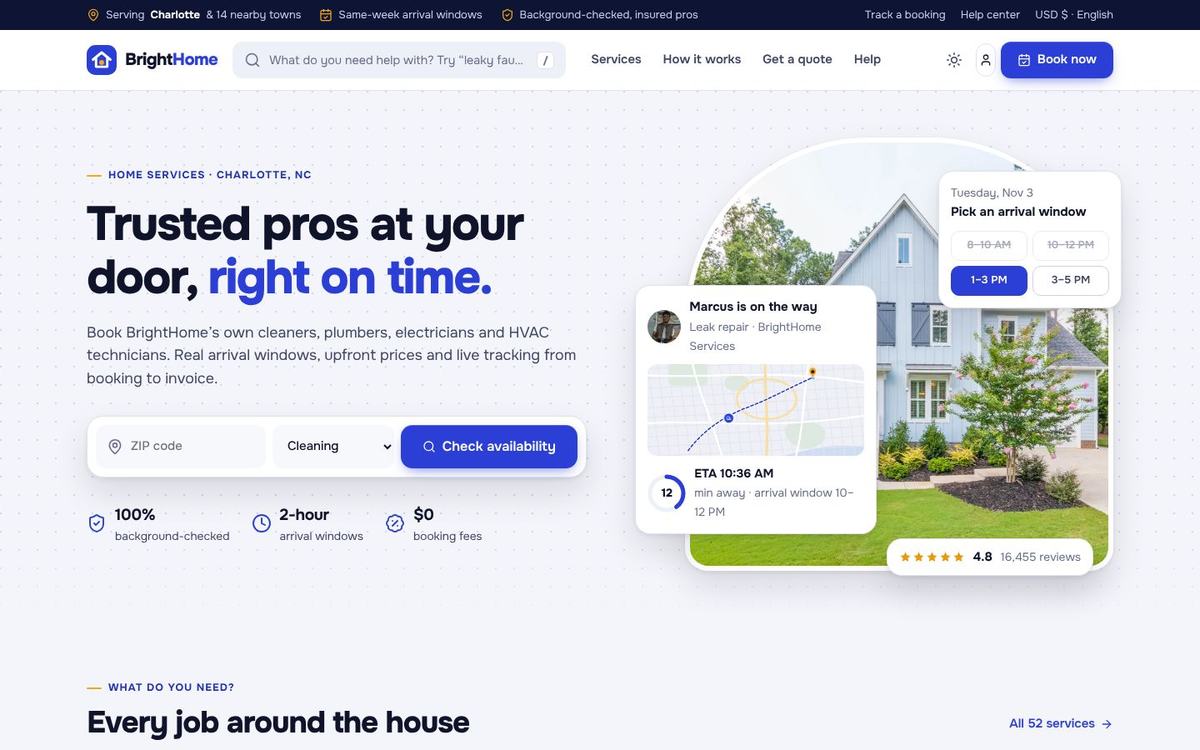
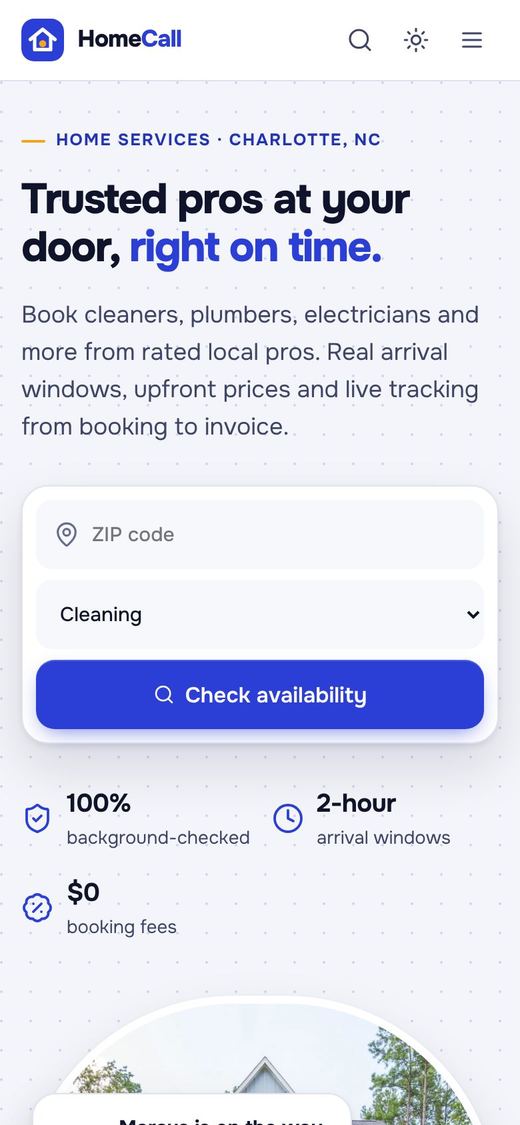
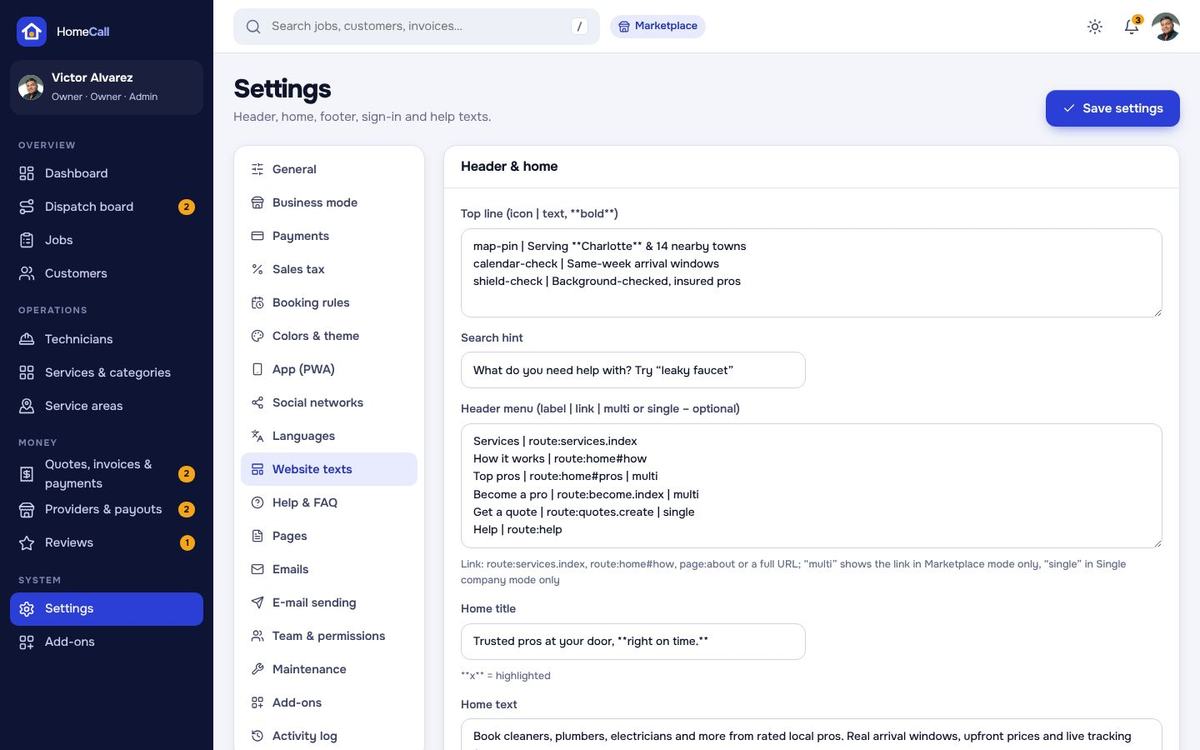
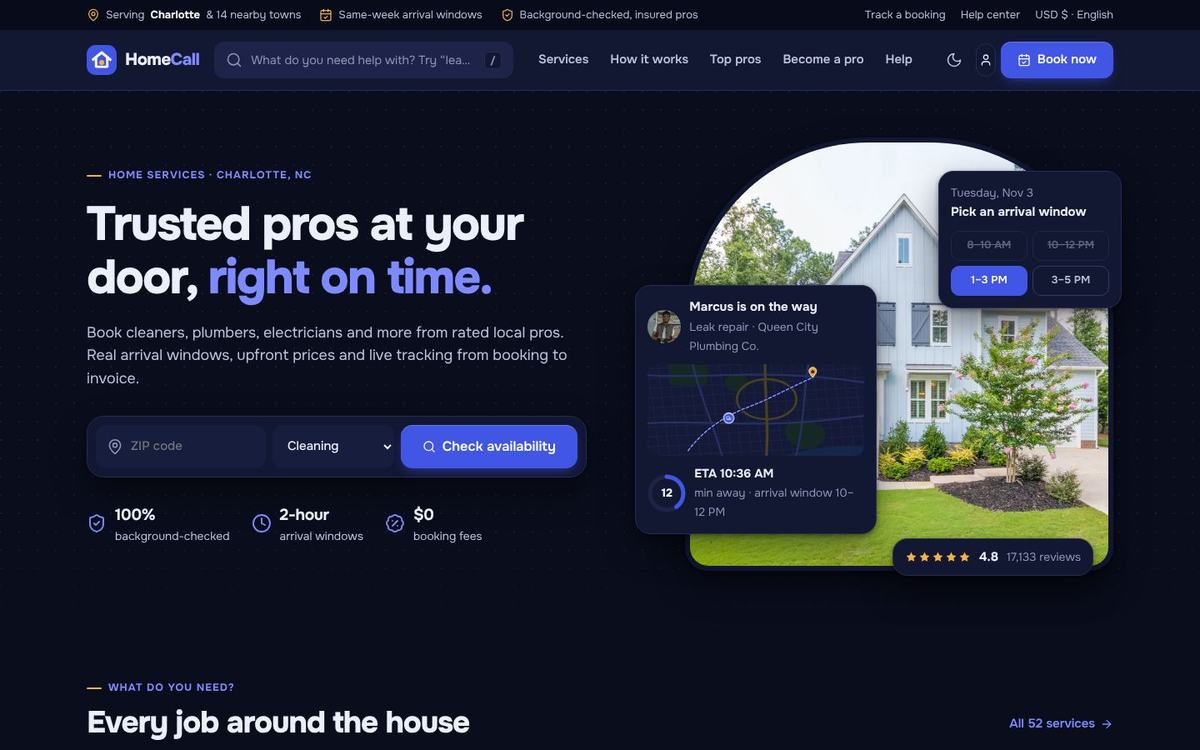
- Home – a hero with the ZIP check (in area / outside, with “tell me when you serve my area”), the live tracking card, service categories, how it works, popular services with “from $” prices and price-type badges, top pros (Marketplace), reviews, the service-area map with ZIP chips and the install-the-app banner. Every text, photo and list is a setting in Settings › Website texts.
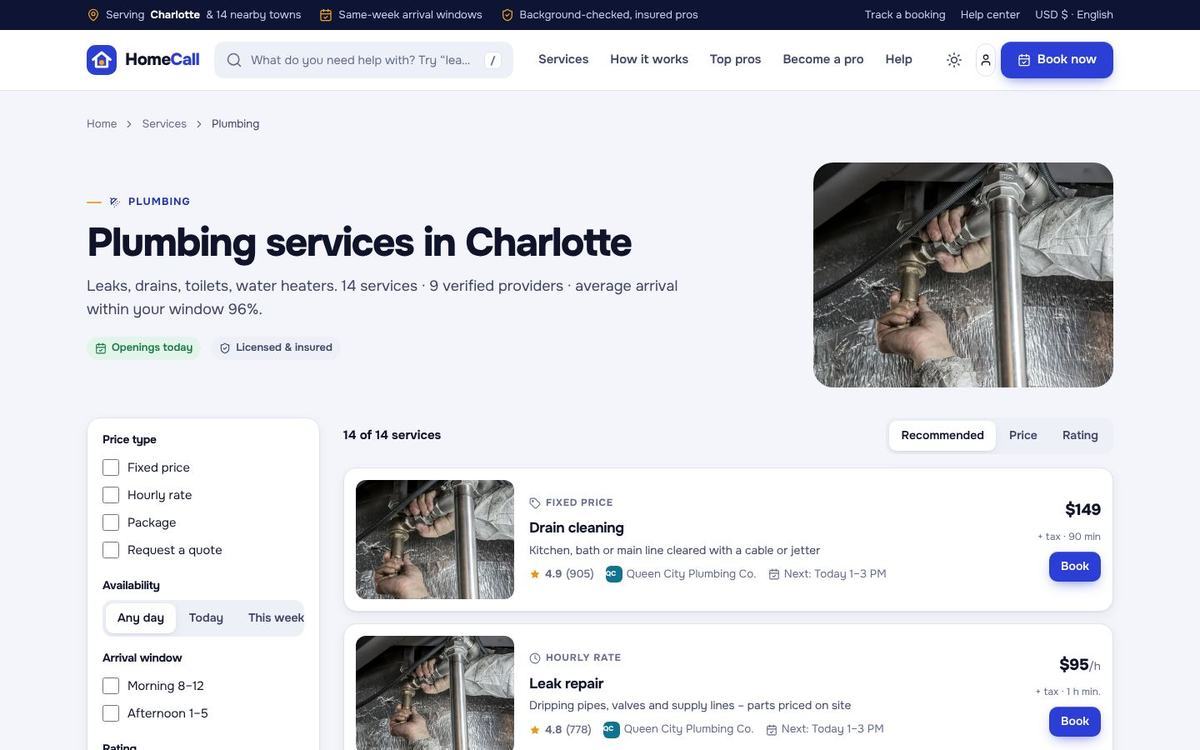
- Category pages – services with fixed, hourly, package and quote prices and filters for price type, day, arrival window, rating and provider; a “request a quote” call-out.
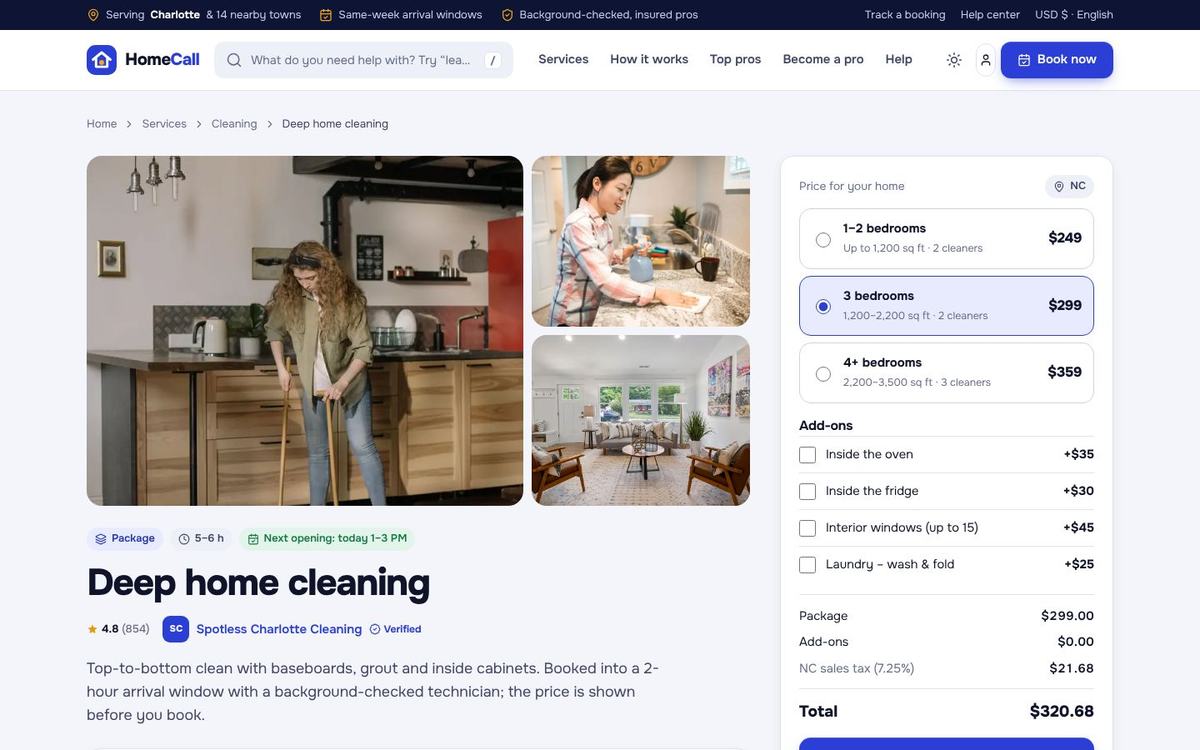
- Service pages – gallery, packages (for example by home size), add-ons with a live total including sales tax, what's included, other price types, FAQ and reviews.
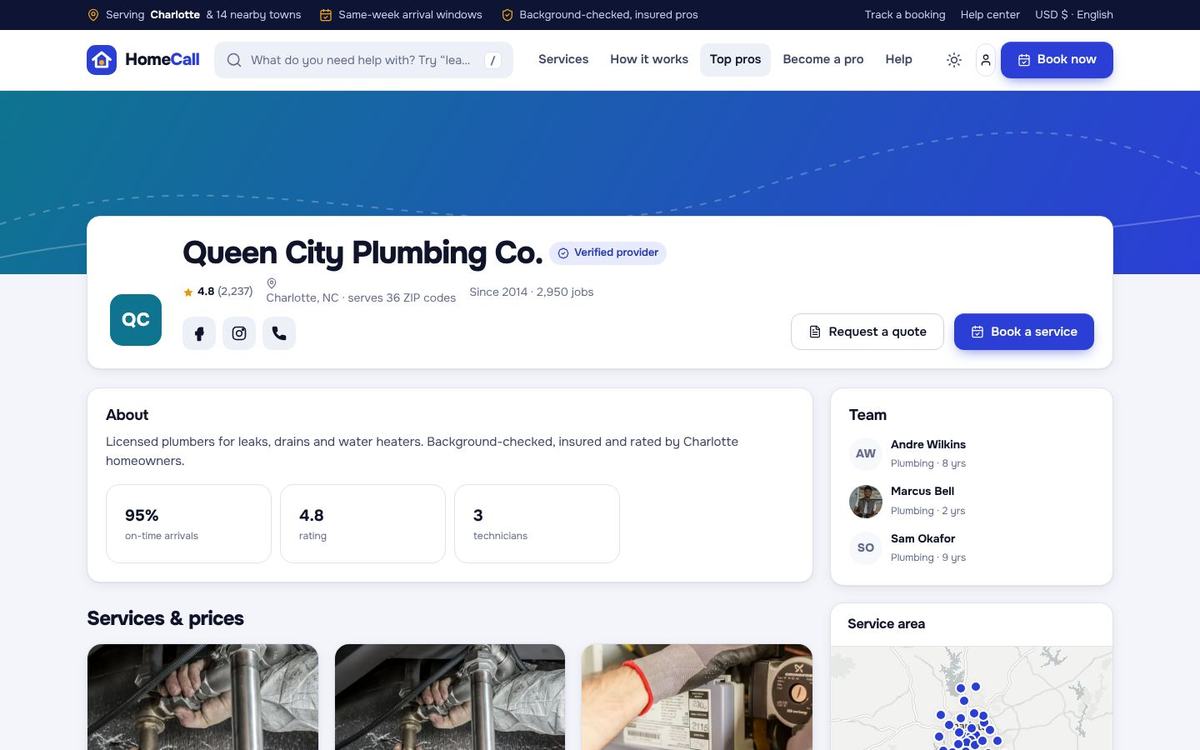
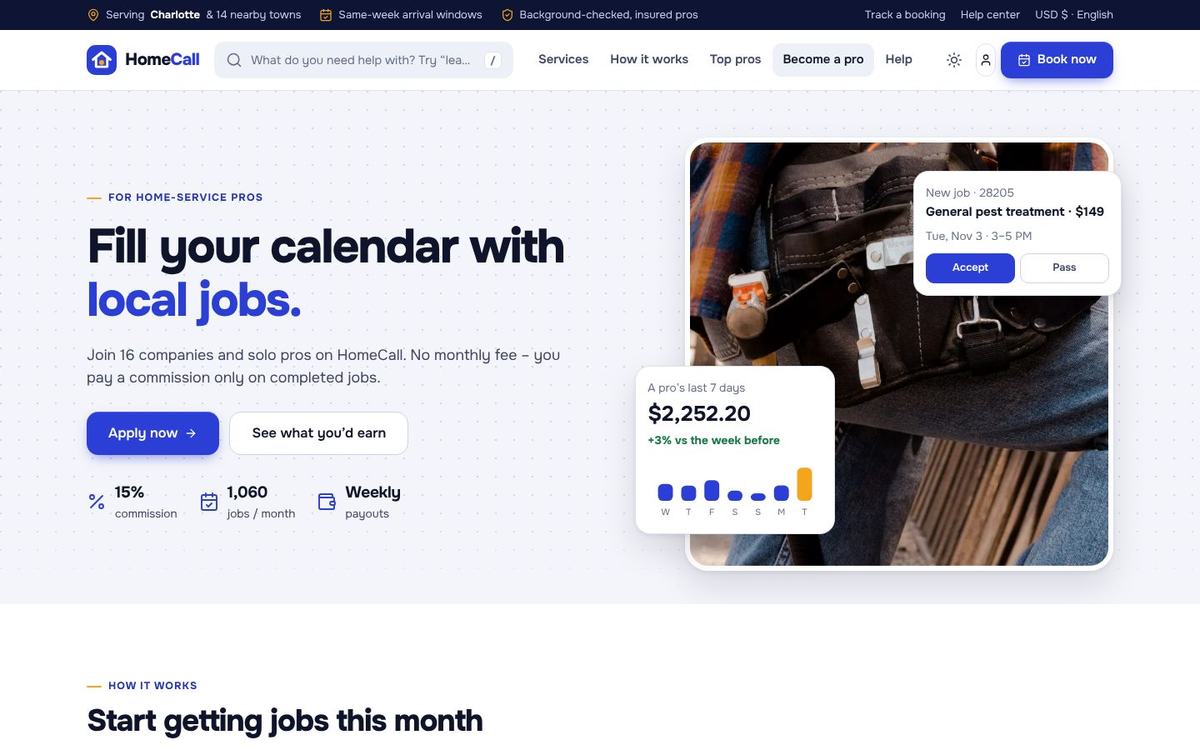
- Provider pages (Marketplace) – verified badge, the provider's own social links, services, reviews, team, area and hours. Become a pro has an earnings calculator with your real commission and the application form.
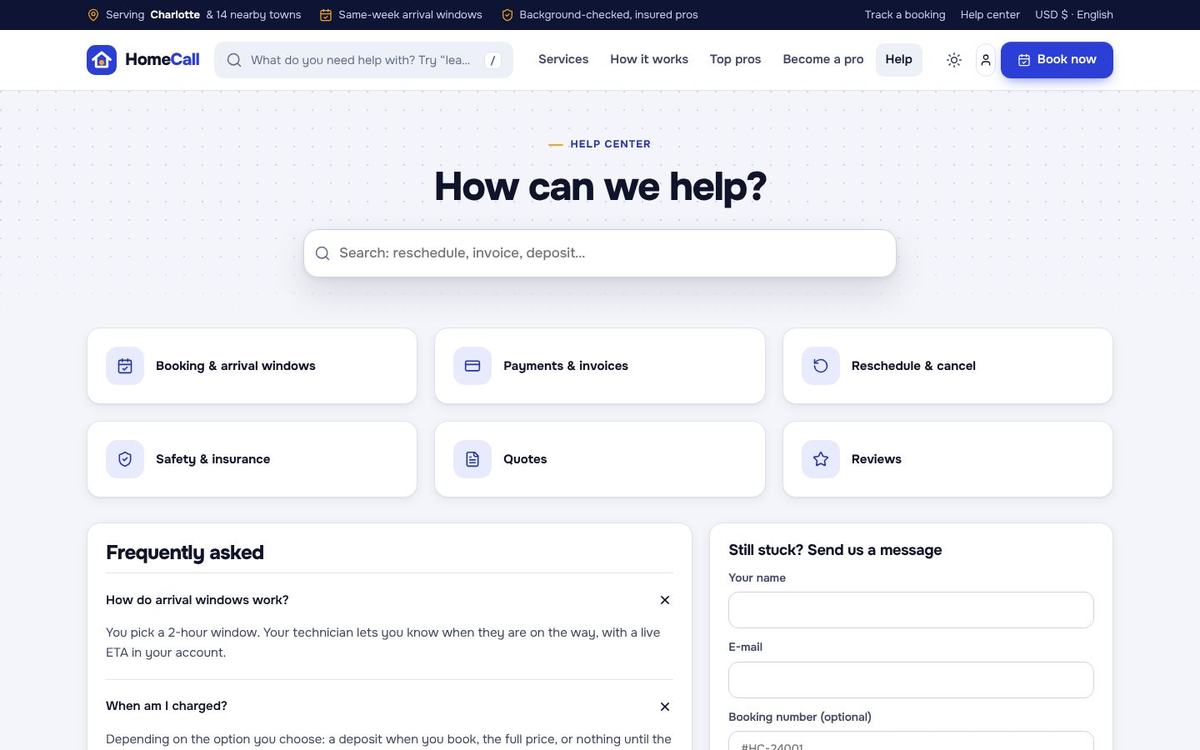
- Help & FAQ – search, topics, FAQ, a contact form and your social networks. Search finds services and categories with suggestions while typing.
Booking flow & arrival windows
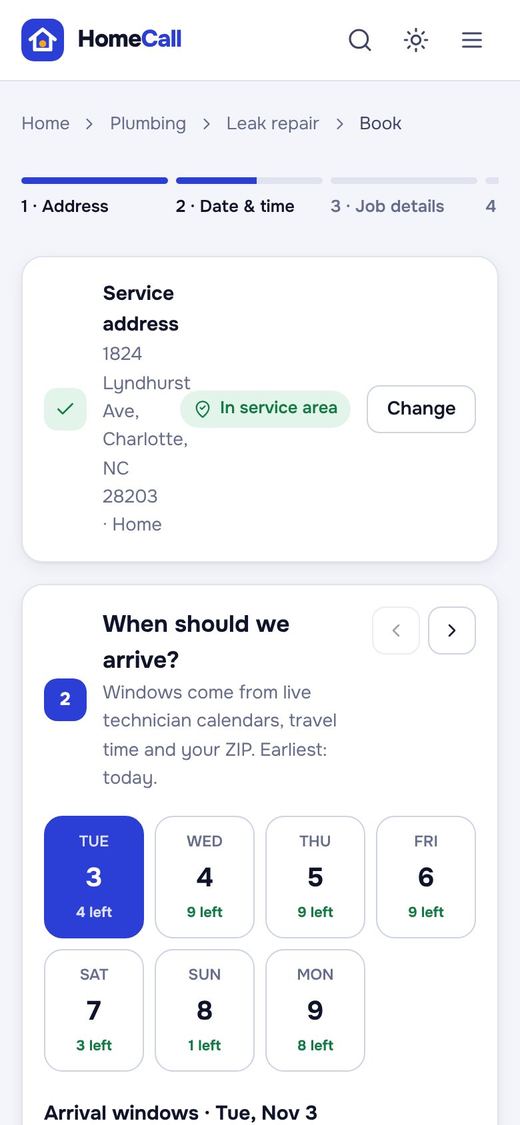
- Address – a saved address or a new one; the area check runs at once (ZIP list or radius) and adds a travel fee where you set one.
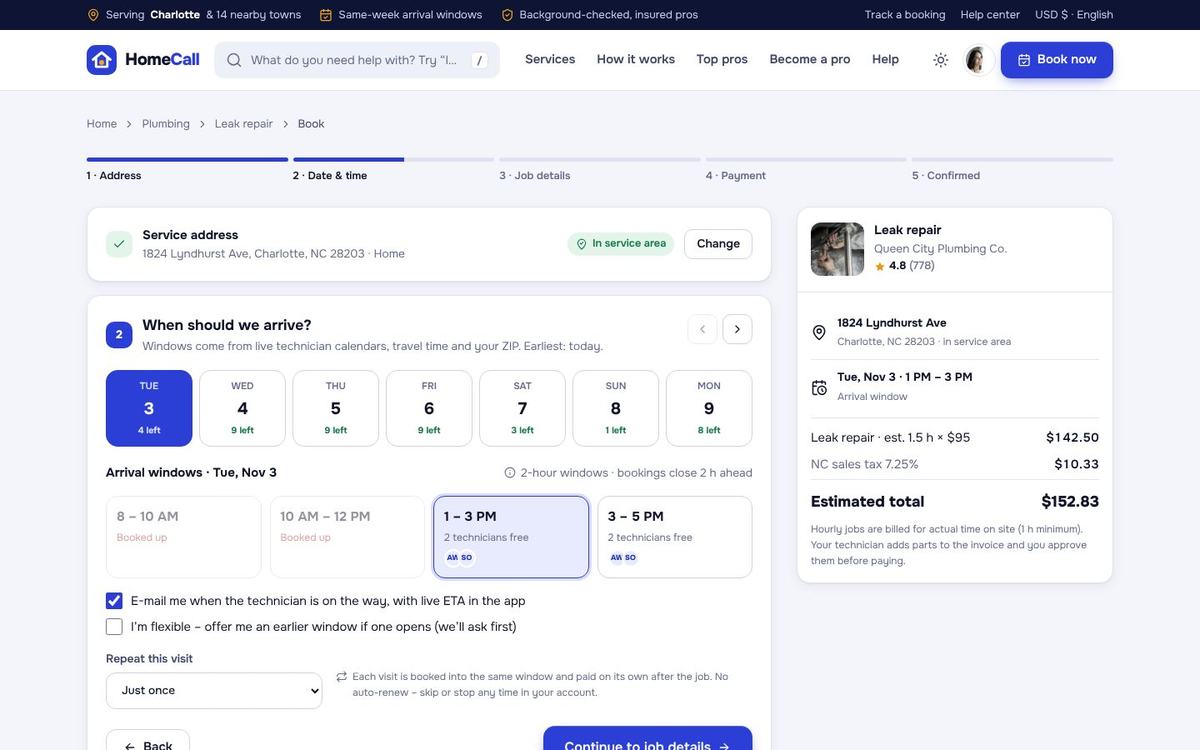
- Day & arrival window – a day strip with openings, then 2-hour arrival windows (8–10, 10–12, 1–3, 3–5 by default). A window is open only when a technician with the right skill is free: working hours, time off, other jobs plus the travel buffer, the jobs-per-day limit and the lead time are all taken into account. The avatars show the free technicians. The customer can ask for a notice when the technician is on the way.
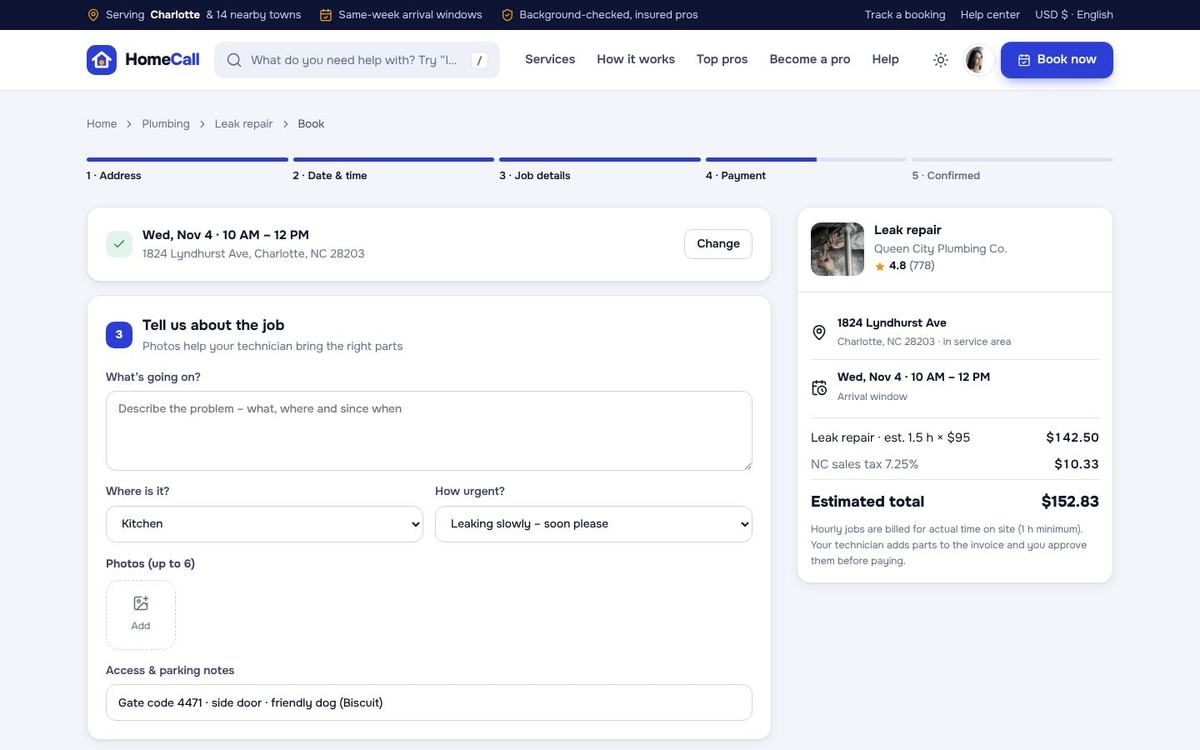
- Job details – questions of the category, a description, up to 6 photos (kept private) and access & parking notes. Guests create their account here.
- Payment – a deposit (25 % by default, or the service's own percentage), the full estimate, or pay after the job. The gateways you switched on are shown with the cancellation policy and “No auto-renew”.
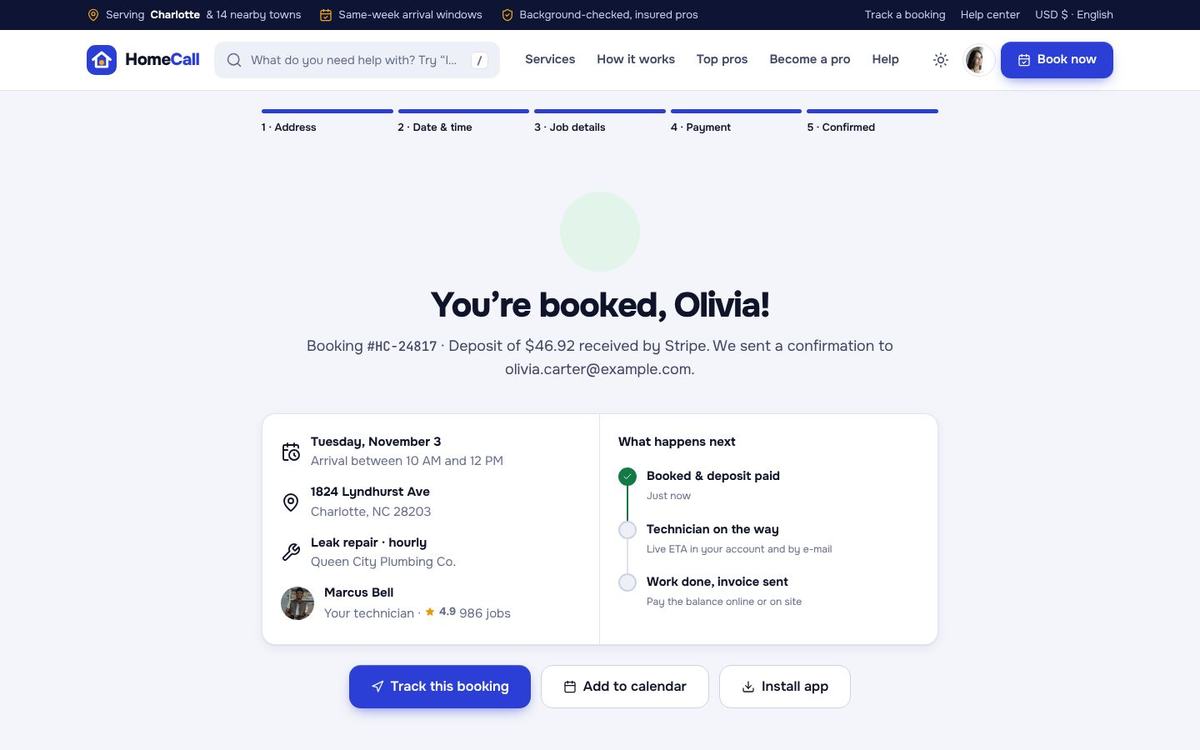
- Confirmed – the assigned technician and what happens next. A free technician is assigned automatically (setting); otherwise the job waits on the dispatch board and is offered to technicians.
Repeat visits (setting): weekly, every 2 weeks or monthly. The next visit is booked a few days ahead as a “pay after the job” visit; nothing is charged automatically and the customer can skip a visit or stop the series in the account.
Quote requests
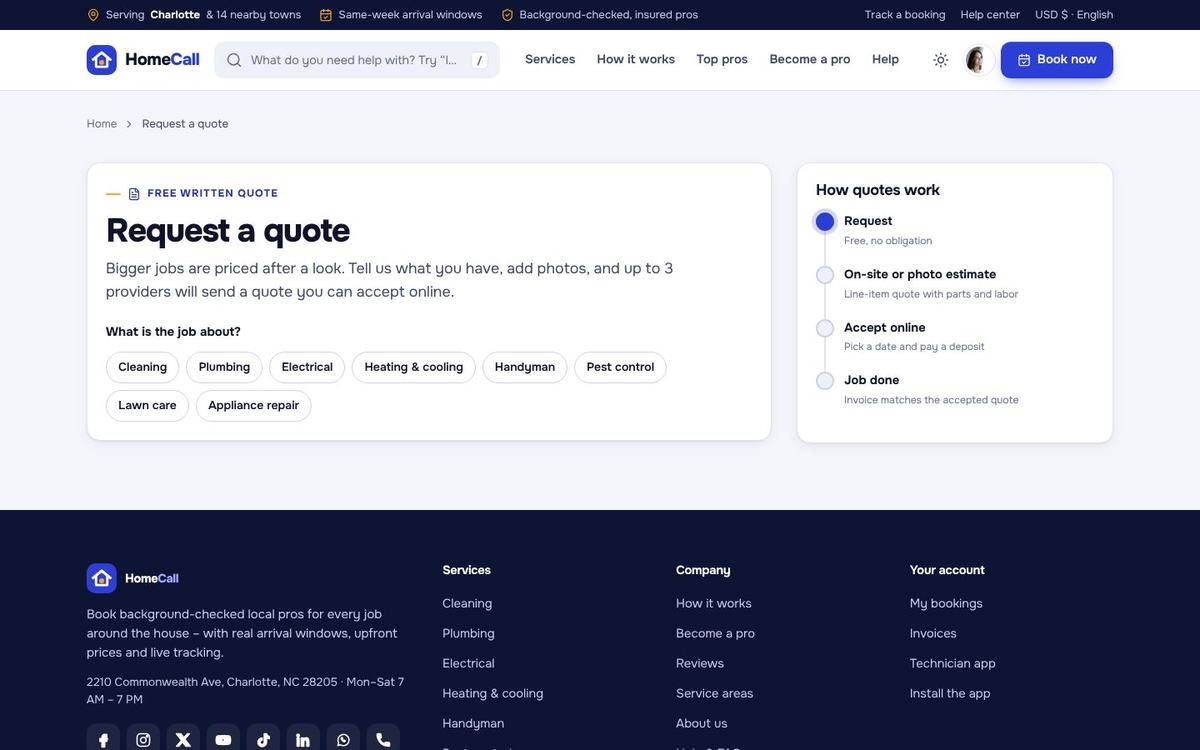
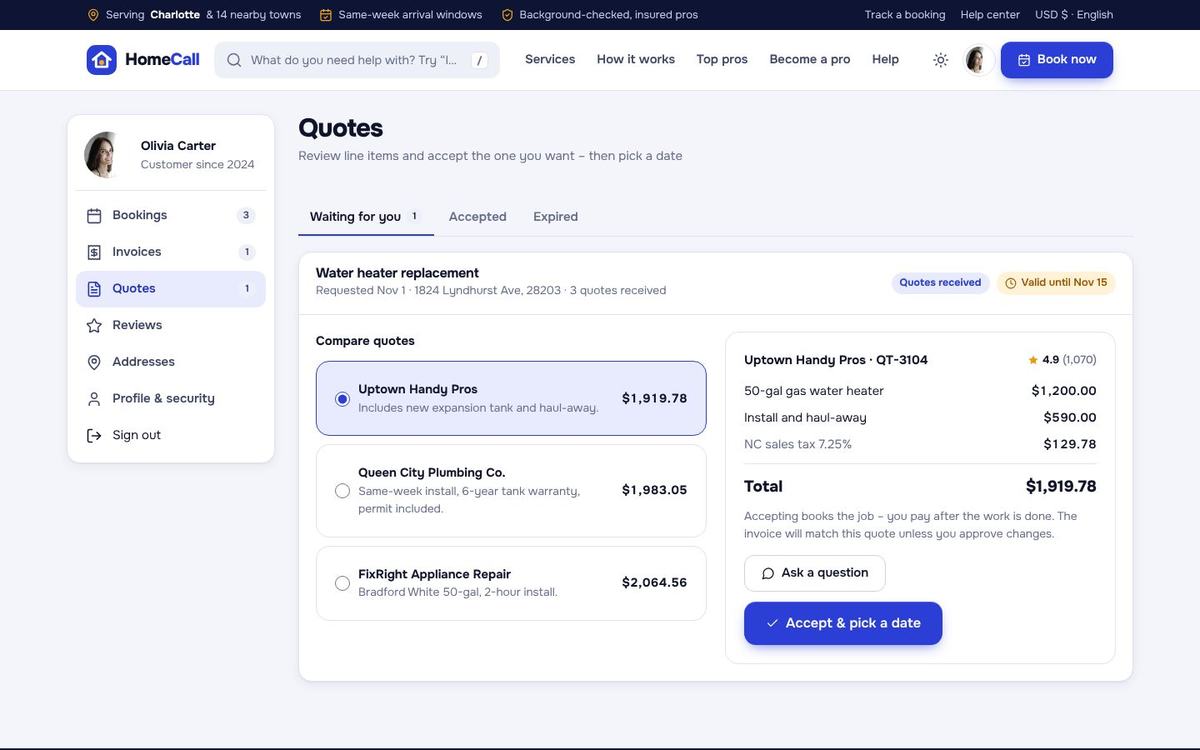
Services priced “request a quote” (for example a water heater replacement) open the quote request: the category's job questions, a description, photos, the address and a preferred visit time. In Marketplace mode up to 3 providers that serve the ZIP receive it (Settings › Business mode) and send a quote with line items from their panel; in Single company mode your office answers it in Quotes, invoices & payments. The customer compares the quotes side by side, accepts one and picks an arrival window – it becomes a booking.
Customer accounts
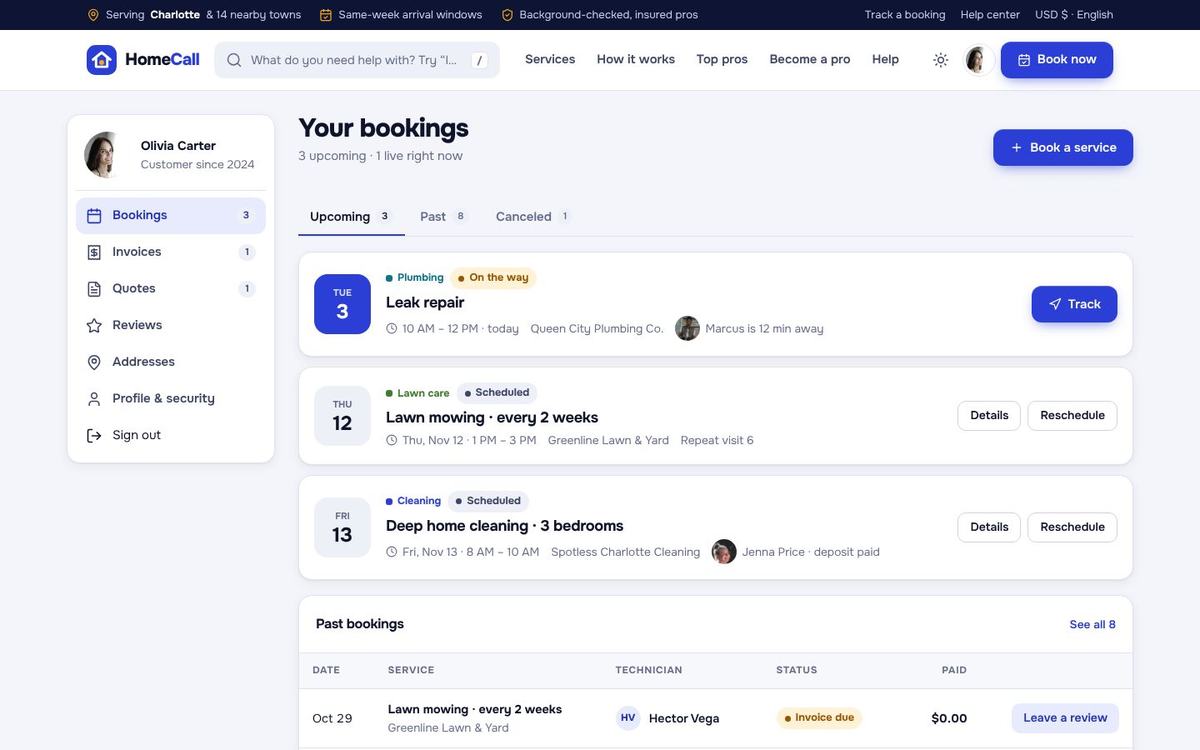
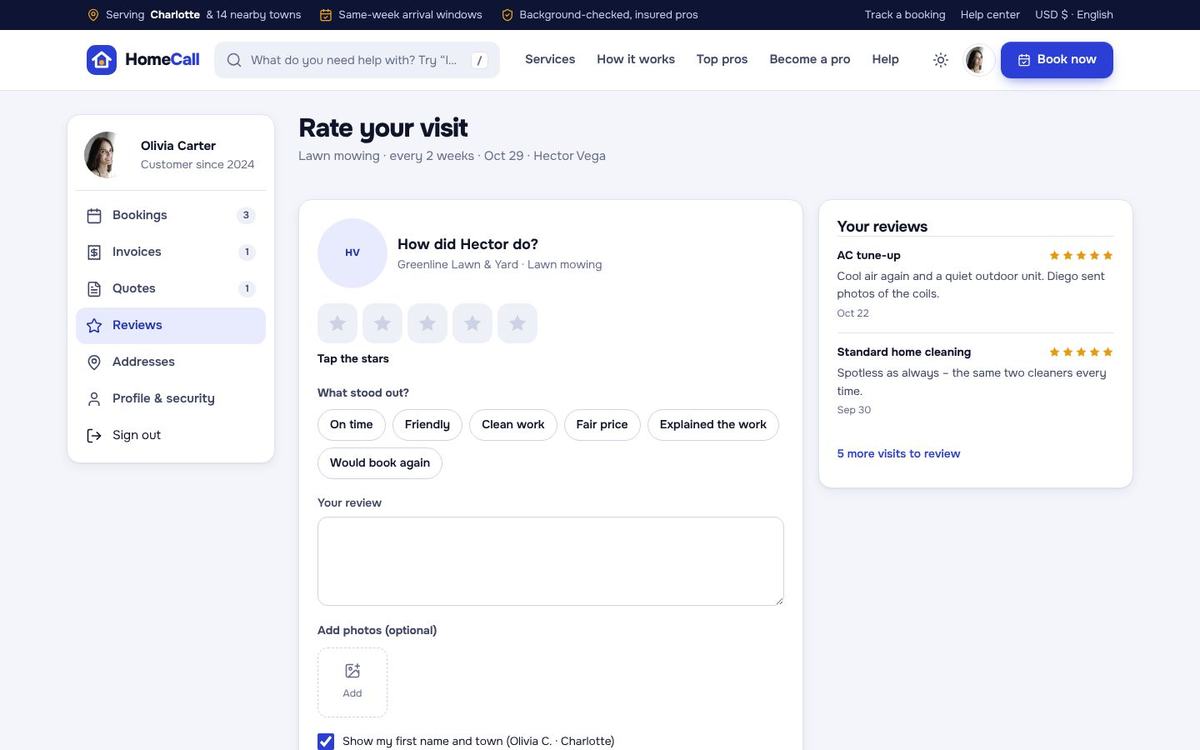
- Bookings – the live booking on top, upcoming visits with reschedule and cancel inside the policy, repeat series with skip / stop, past visits with a review prompt.
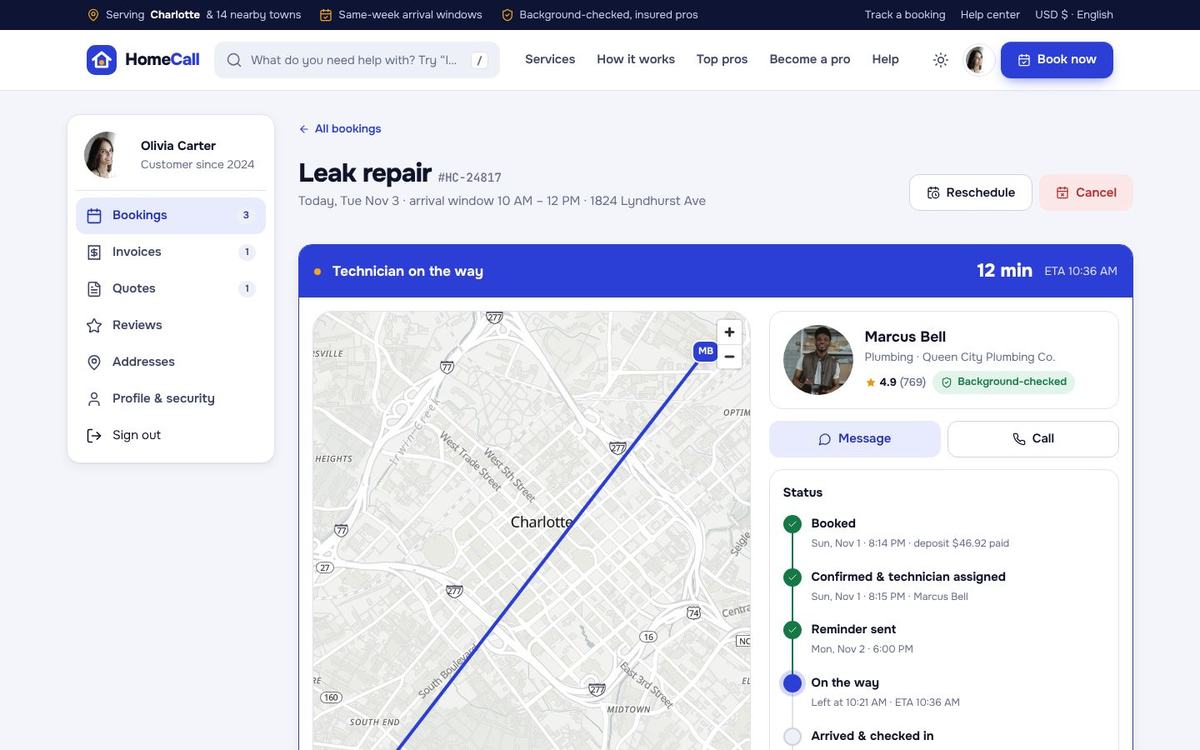
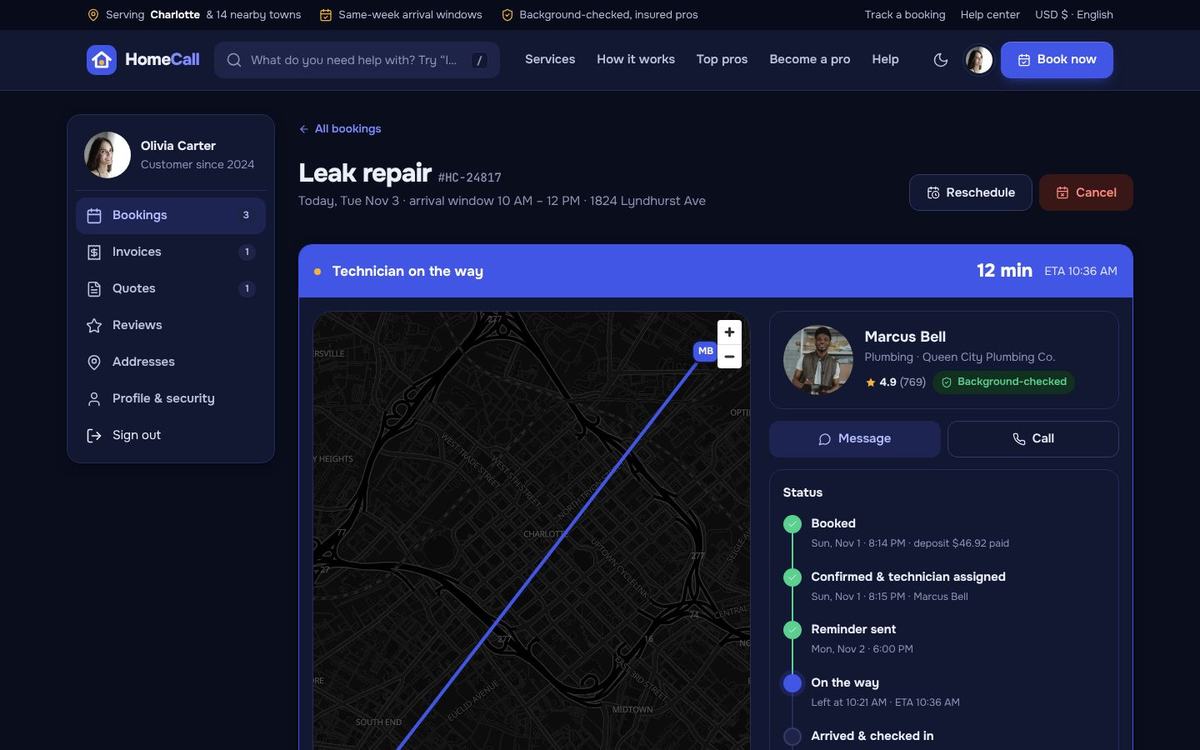
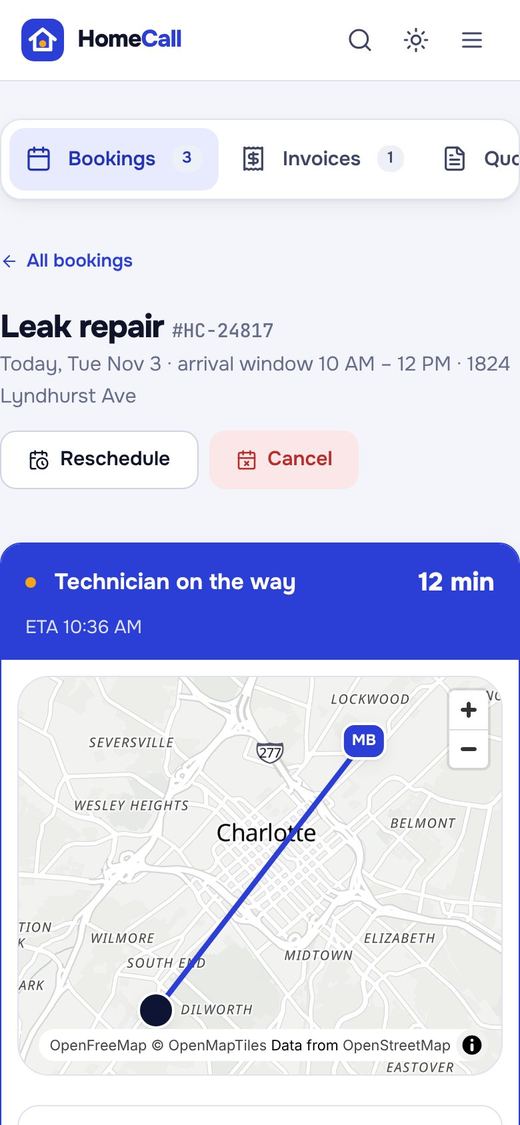
- Booking detail – “Technician on the way” with the ETA, a live map with the technician's position, the technician's photo and a Call button, the timeline, chat & notes.
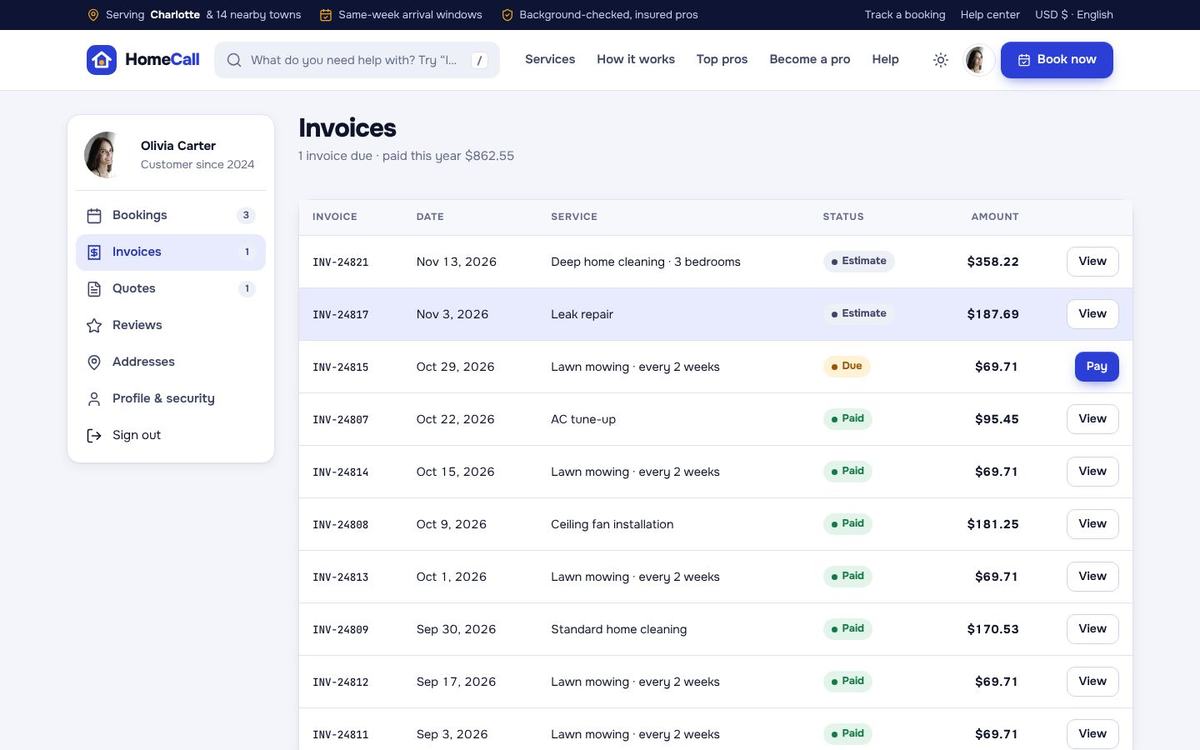
- Invoices – every invoice with the on-site parts and labor, sales tax and the deposit already paid, as PDF, with the pay link for the balance.
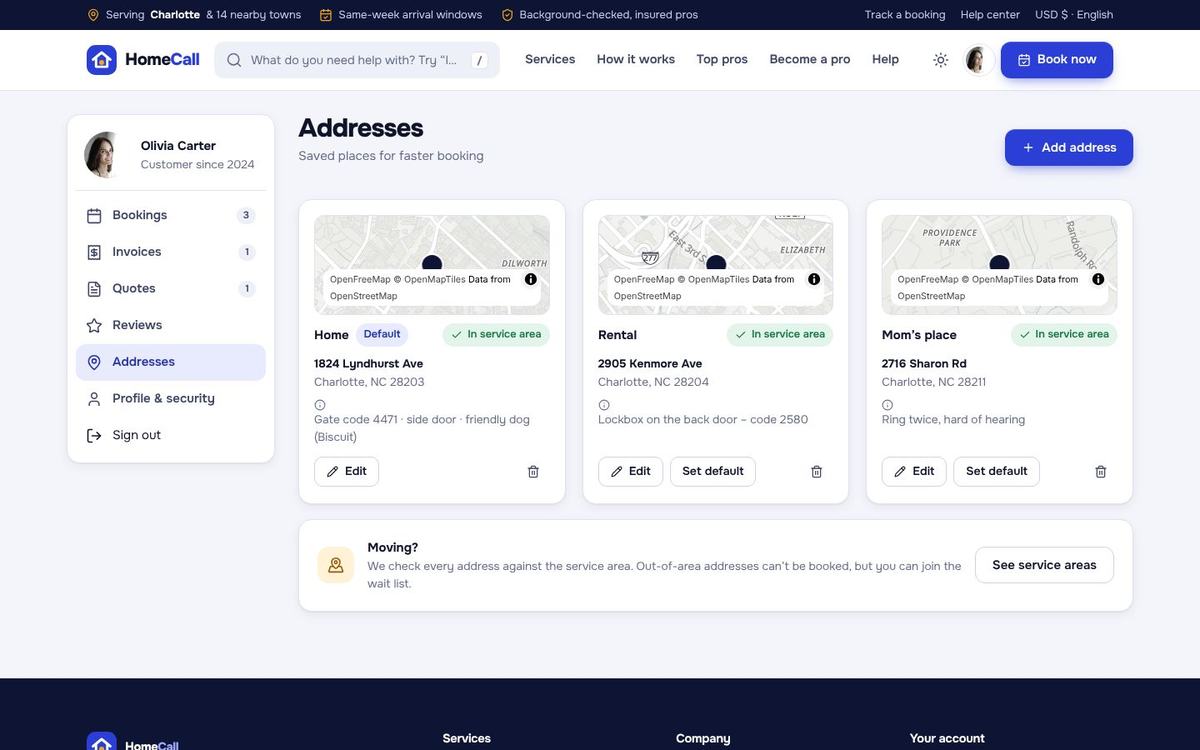
- Quotes, reviews, addresses (with mini maps and access notes), profile & password and notification choices.
Technician app
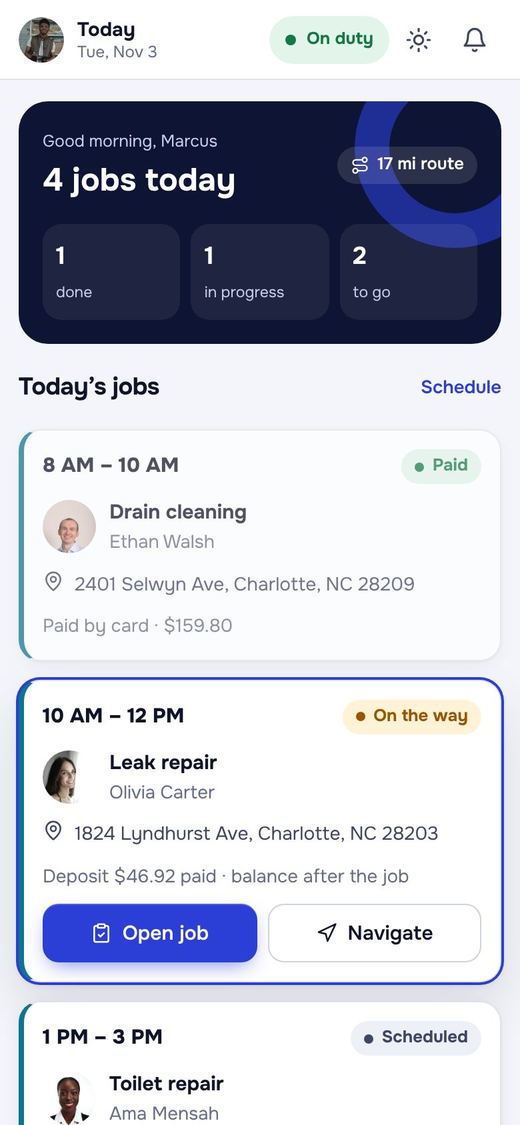
Technicians sign in at /tech on their phone and install it as an app (“Install app” on Android, “Add to Home Screen” on iPhone). From 980 px wide the tab bar becomes a side rail, so it works on a tablet or laptop too.
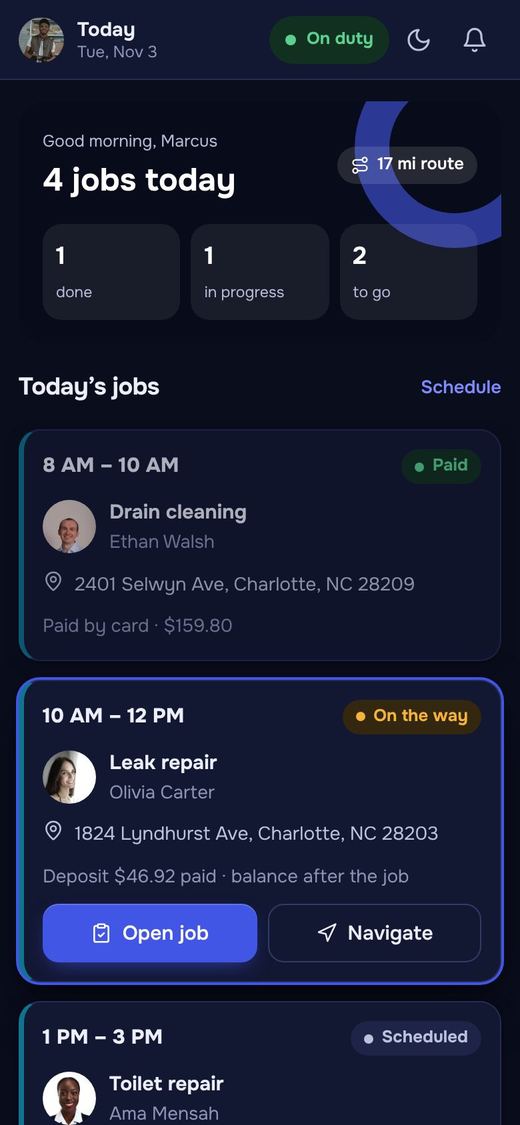
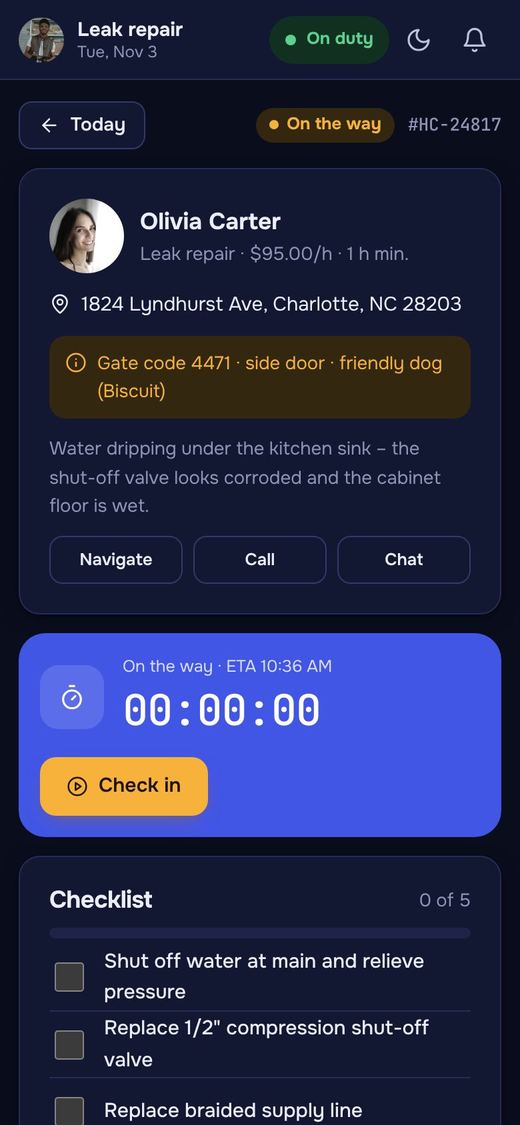
- Today – the day card, job cards with arrival windows, On the way with an ETA (the customer is notified), navigate, the route map and job offers to accept or pass. A duty switch shares the location only while on duty.
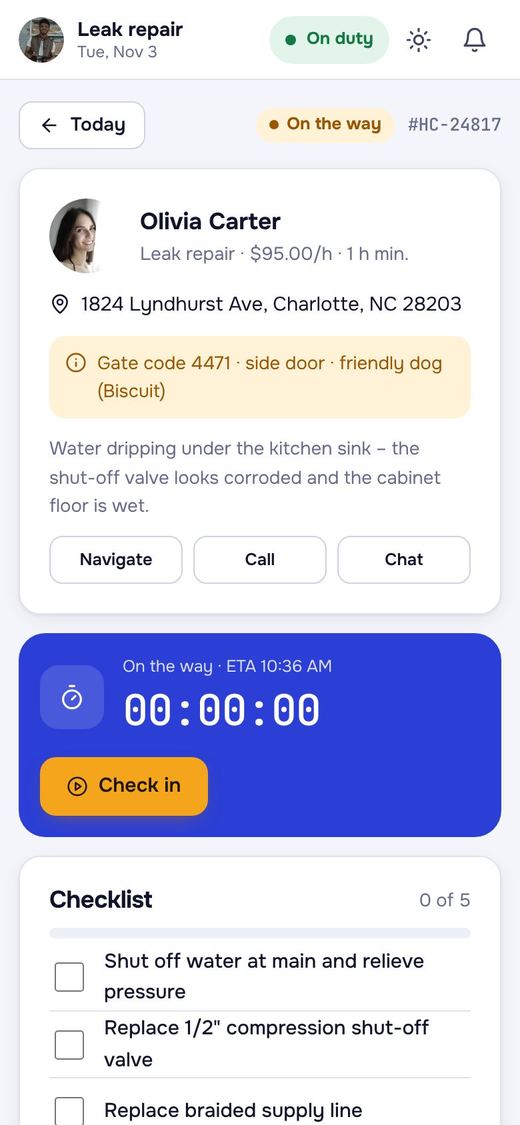
- Job – navigate, call and chat; check-in timer and check-out; the category's checklist; before / after photos; parts and labor added to the invoice; the customer's signature; collect payment – send the card pay link, or record cash or a check; complete the job.
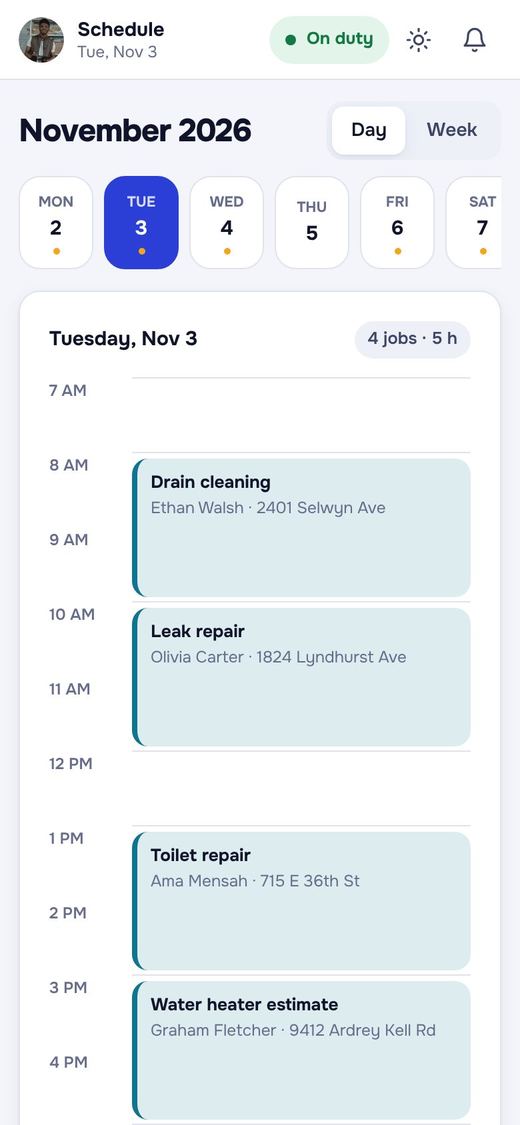
- Schedule – day strip and hour agenda, working hours and time-off requests.
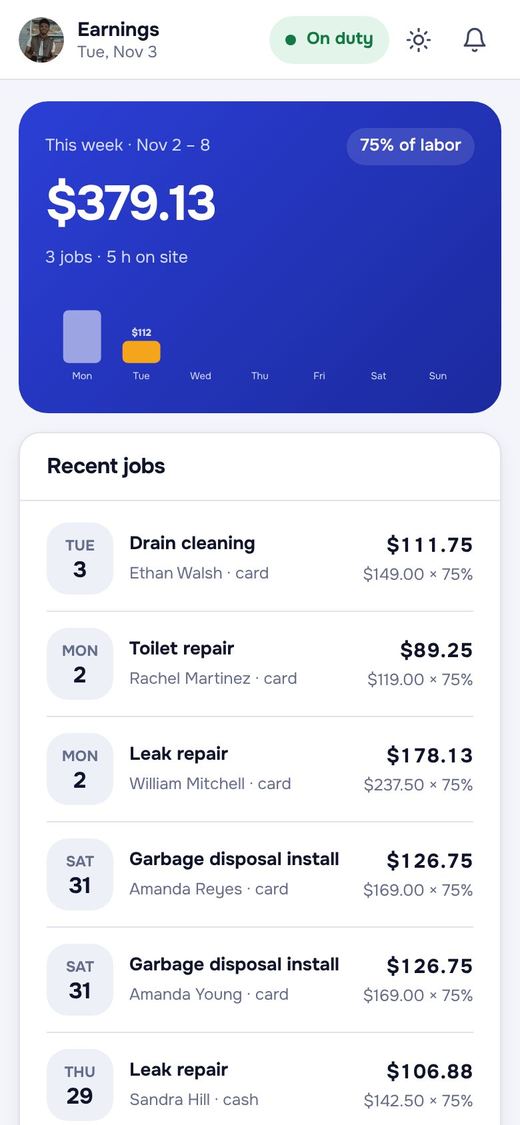
- Earnings (Marketplace) – the week total, each job's share after commission, the technician's pay model (for example 75 % of labor), cash to hand in and payouts.
Dashboard
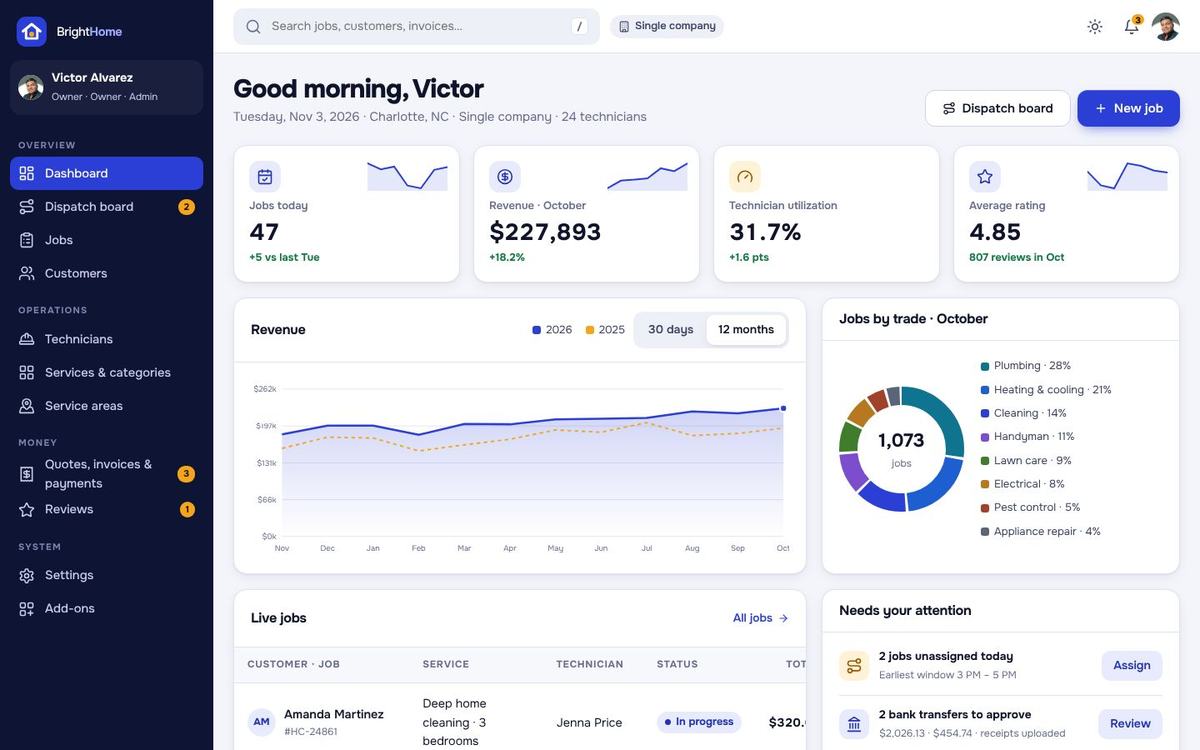
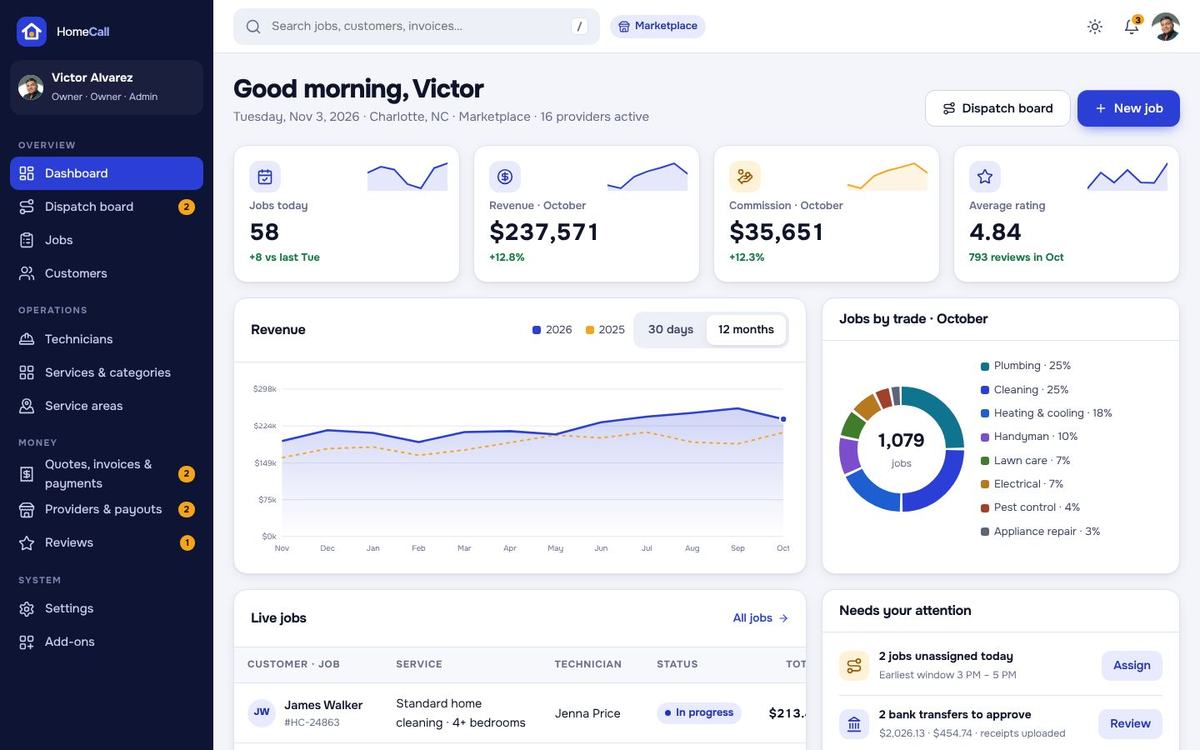
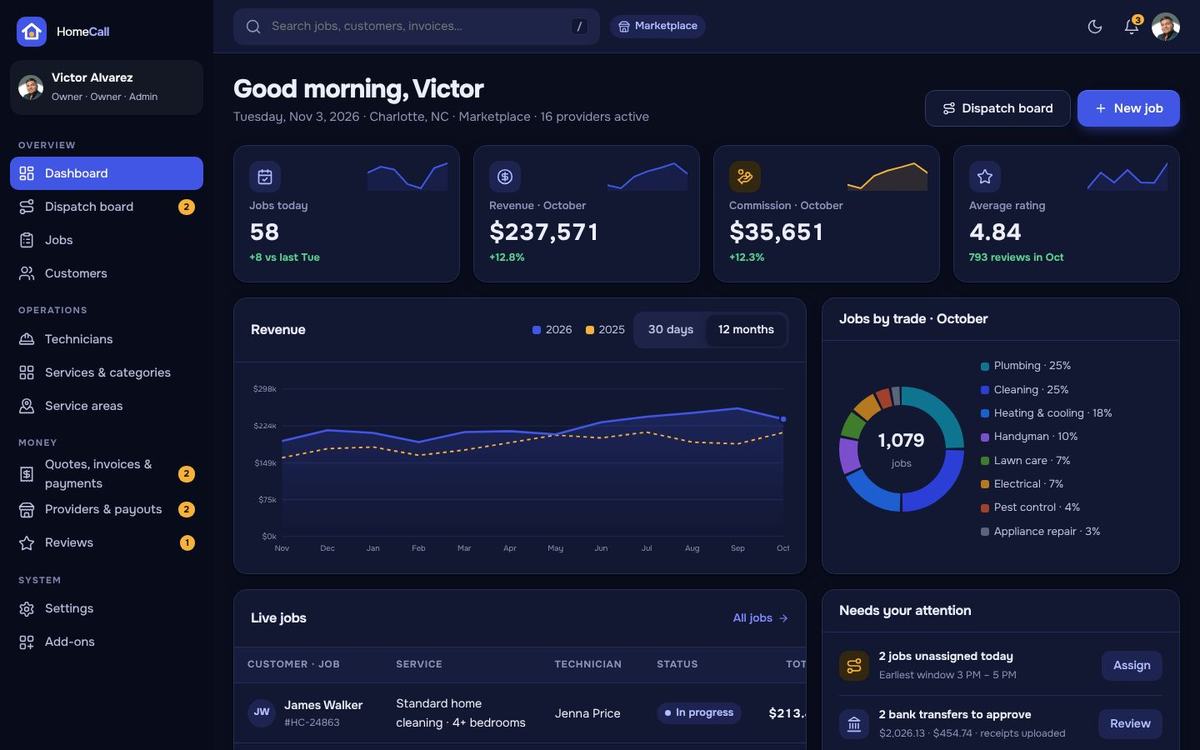
KPIs (revenue, jobs, commission in Marketplace mode, technician utilization in Single company mode), revenue against last year, jobs by trade, live jobs, “Needs your attention” (bank transfers, applications, unassigned jobs, out-of-area requests), on-time arrivals, open quotes and the top ZIP codes.
Dispatch board & jobs
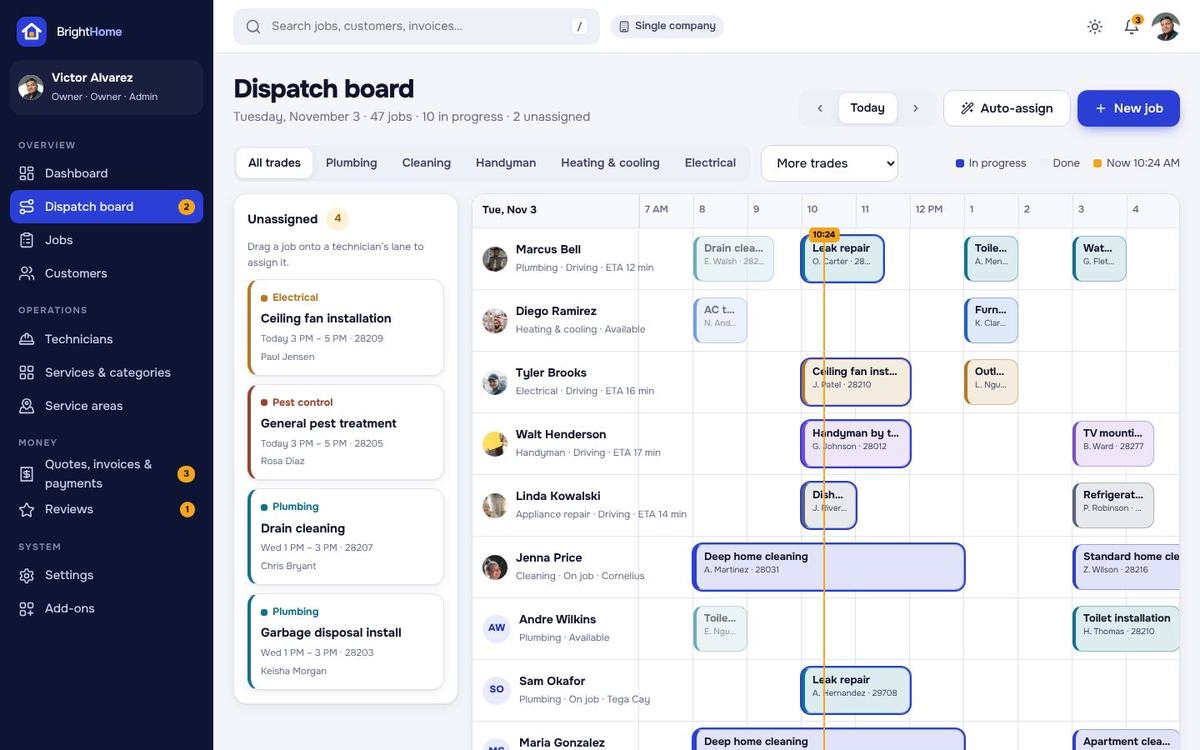
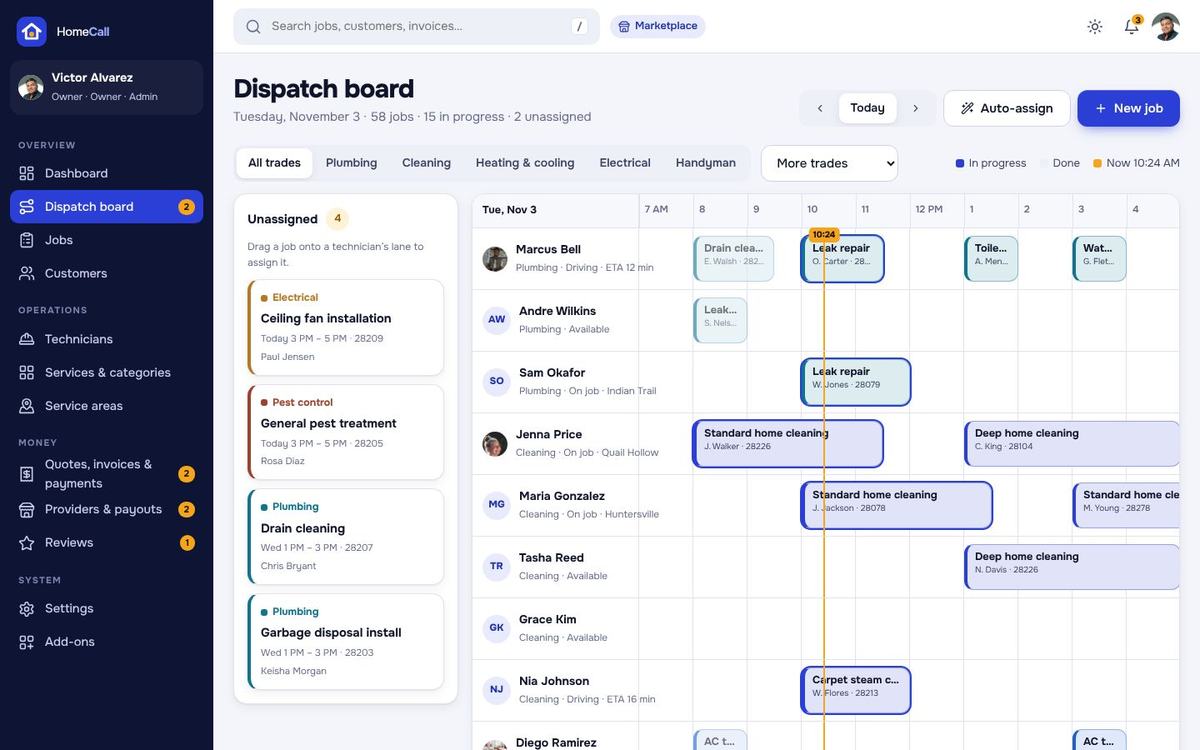
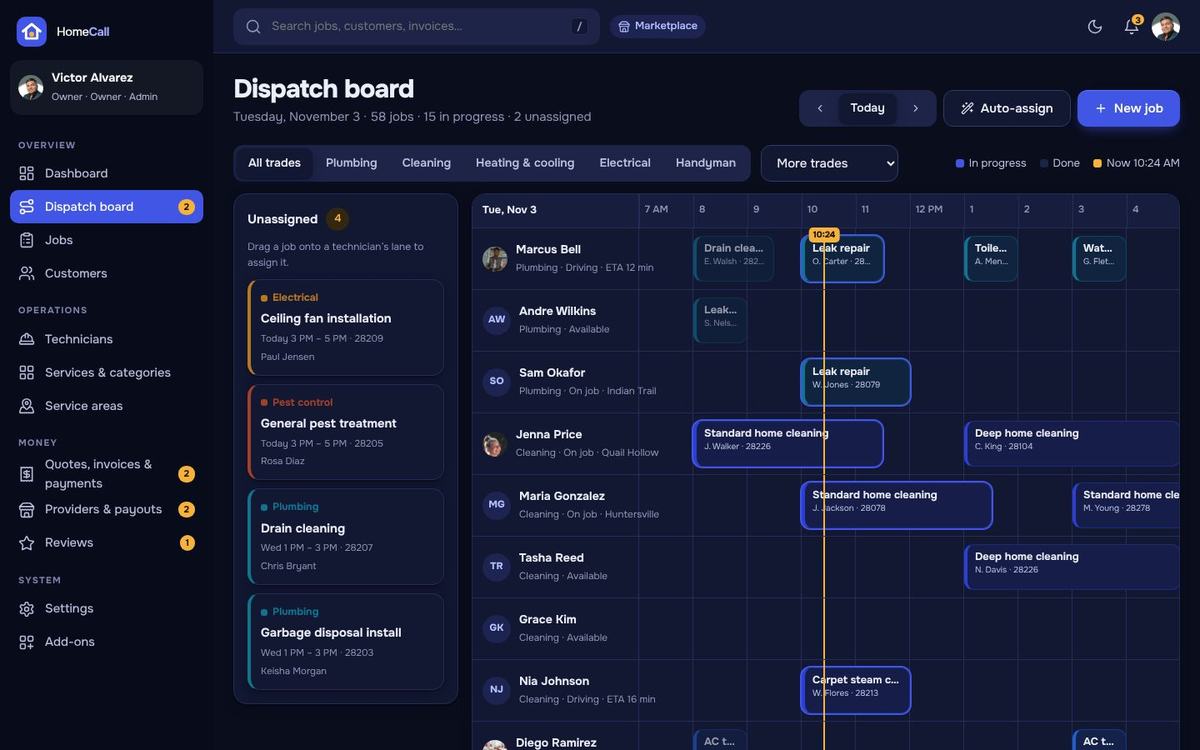
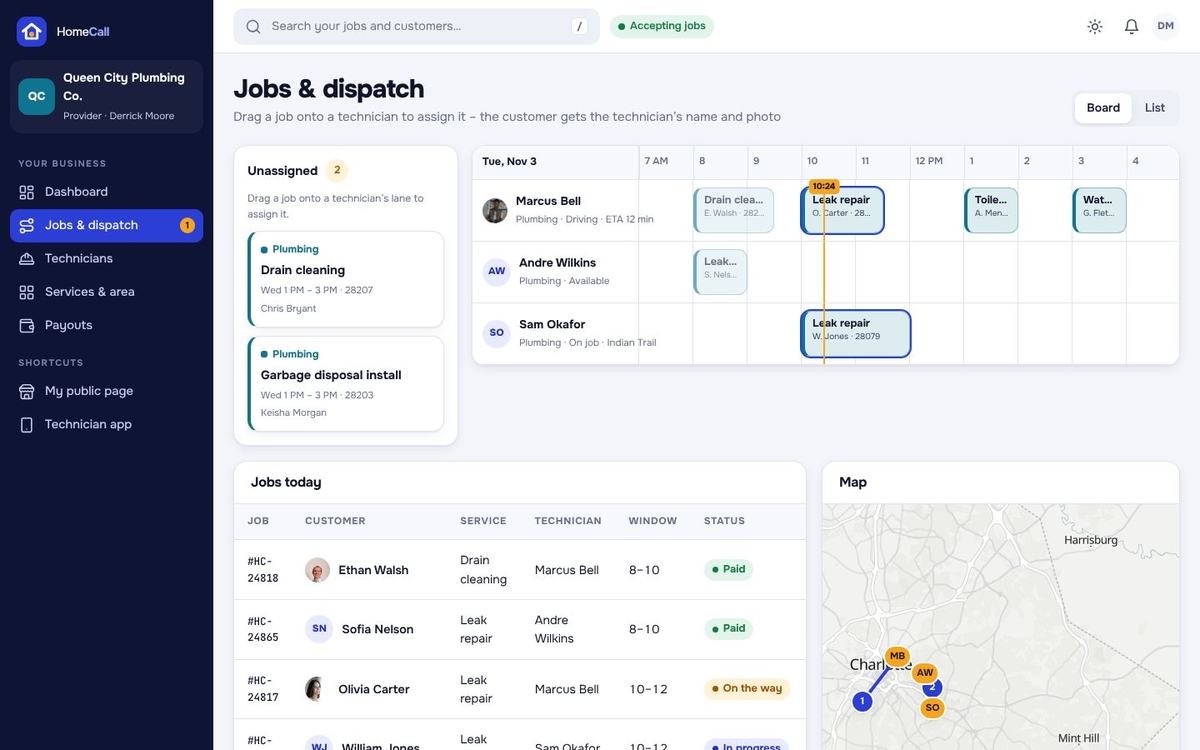
Admin › Dispatch board: one lane per technician on a 7 AM – 7 PM timeline with a “now” line. Drag a job from the Unassigned queue onto a lane to assign it – the board only accepts a technician who is free at that time and has the skill. The live map shows the technicians and their routes; alerts warn about late risk and reschedules. “Auto-assign” fills the queue with free technicians.
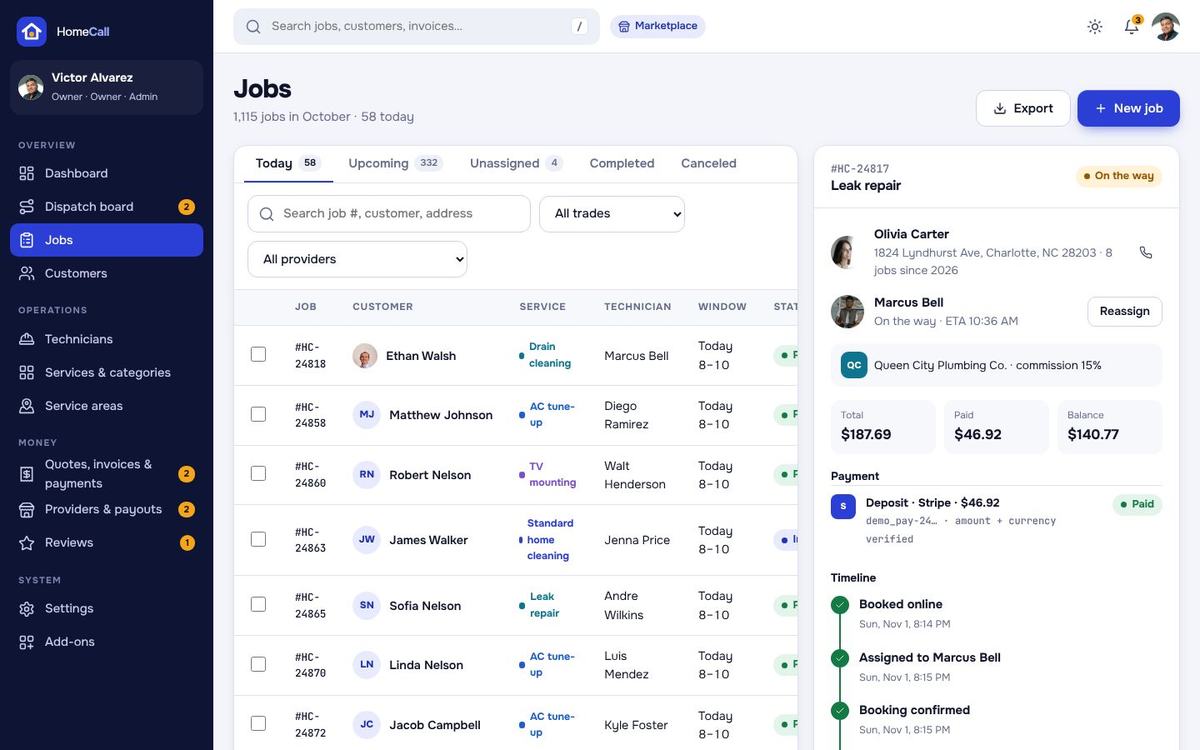
Jobs: today, upcoming, unassigned, completed and canceled with search and filters (trade, provider) and export. The job panel shows the money split (total, paid, balance, commission), the verified payment, provider and commission, the timeline, and the actions: status, reassign, reschedule, cancel, invoice and internal notes. Jobs › New job books a visit for a phone customer.
Customers
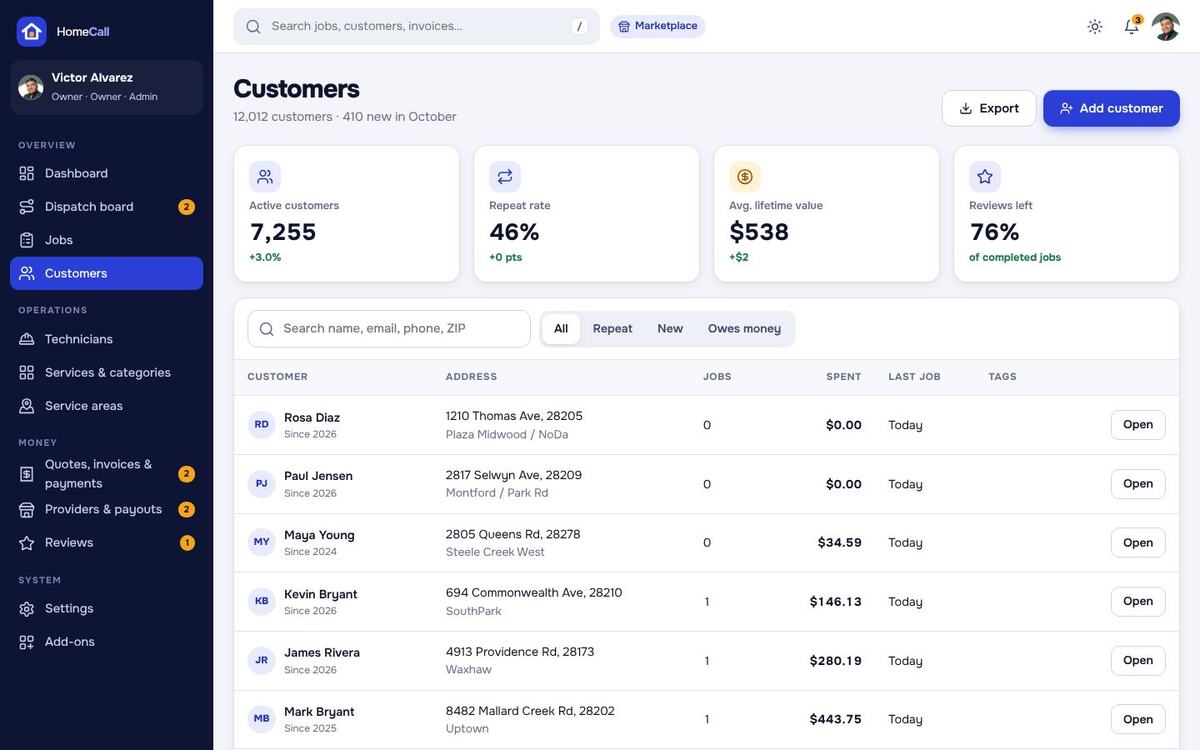
Every customer with bookings, spend, last visit and rating; the detail page shows addresses, bookings, invoices, quotes and reviews. Block a customer, export the list as CSV.
Technicians
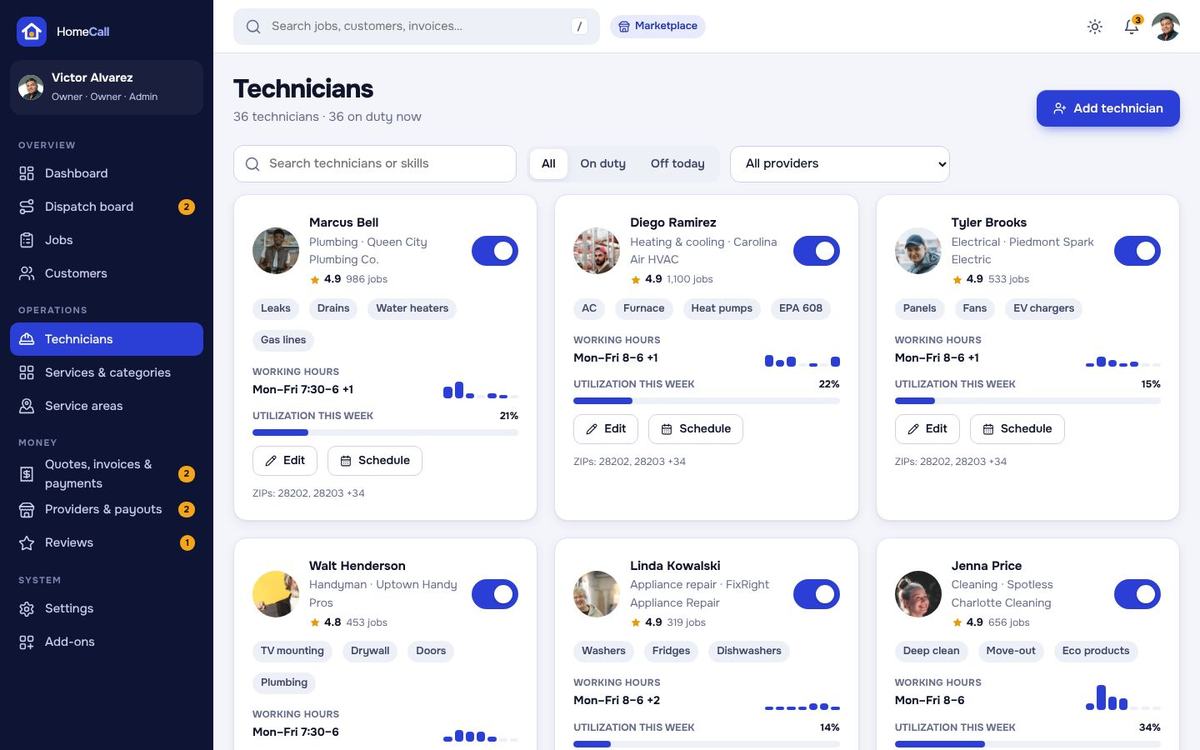
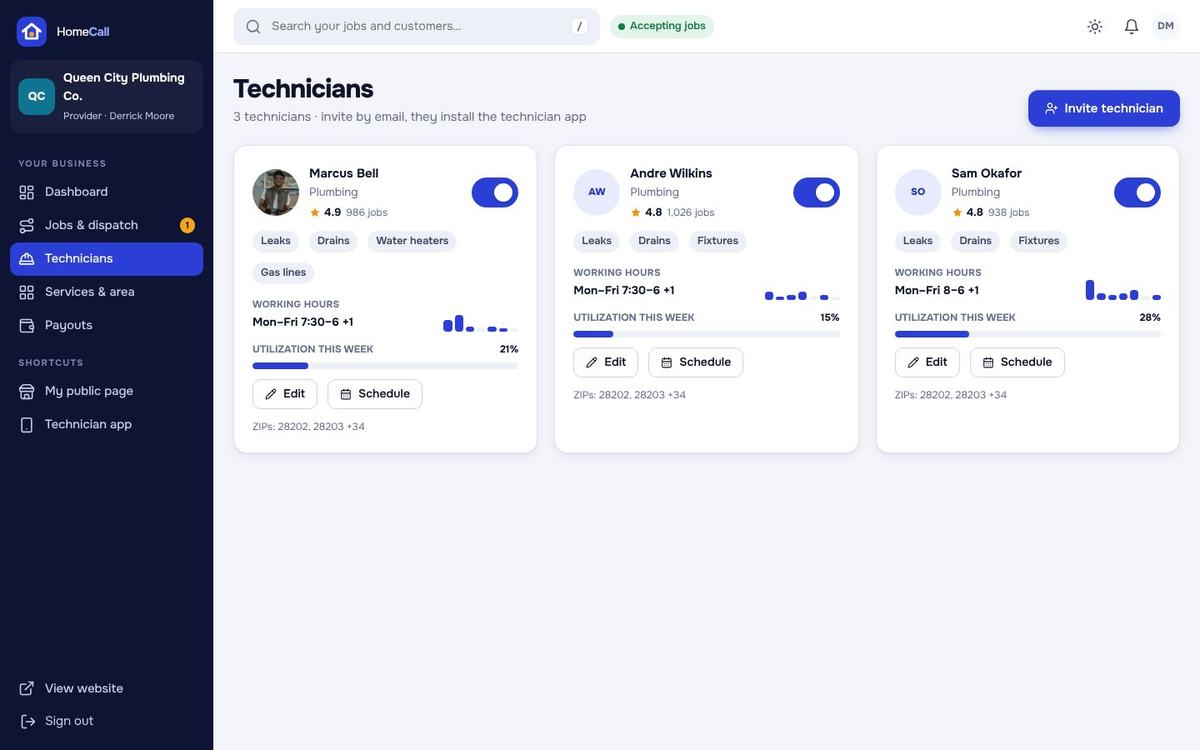
Add a technician with name, phone, photo and trade, the skills (service categories), weekly working hours, jobs per day, and the pay model (percentage of labor, percentage of the total, hourly or per job). Invite sends a login for the technician app. Utilization and ratings are shown per technician; time-off requests are approved or declined here. In Marketplace mode each provider manages its own technicians in the provider panel.
Services & categories
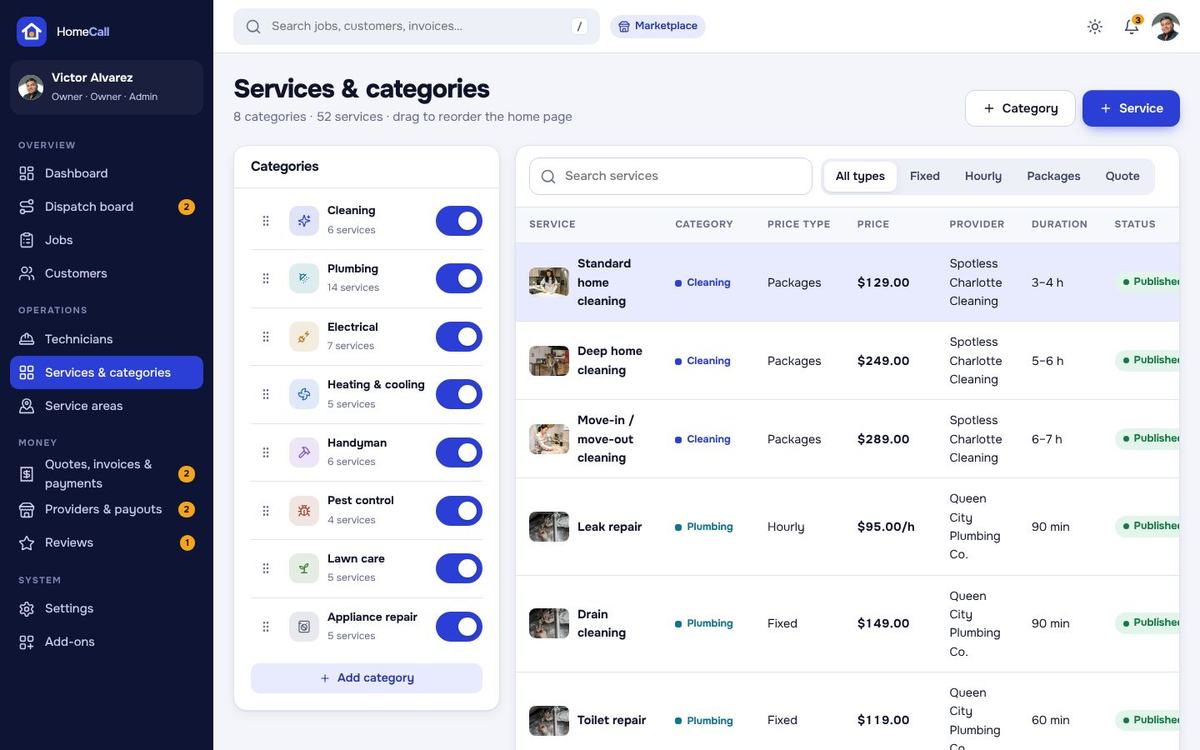
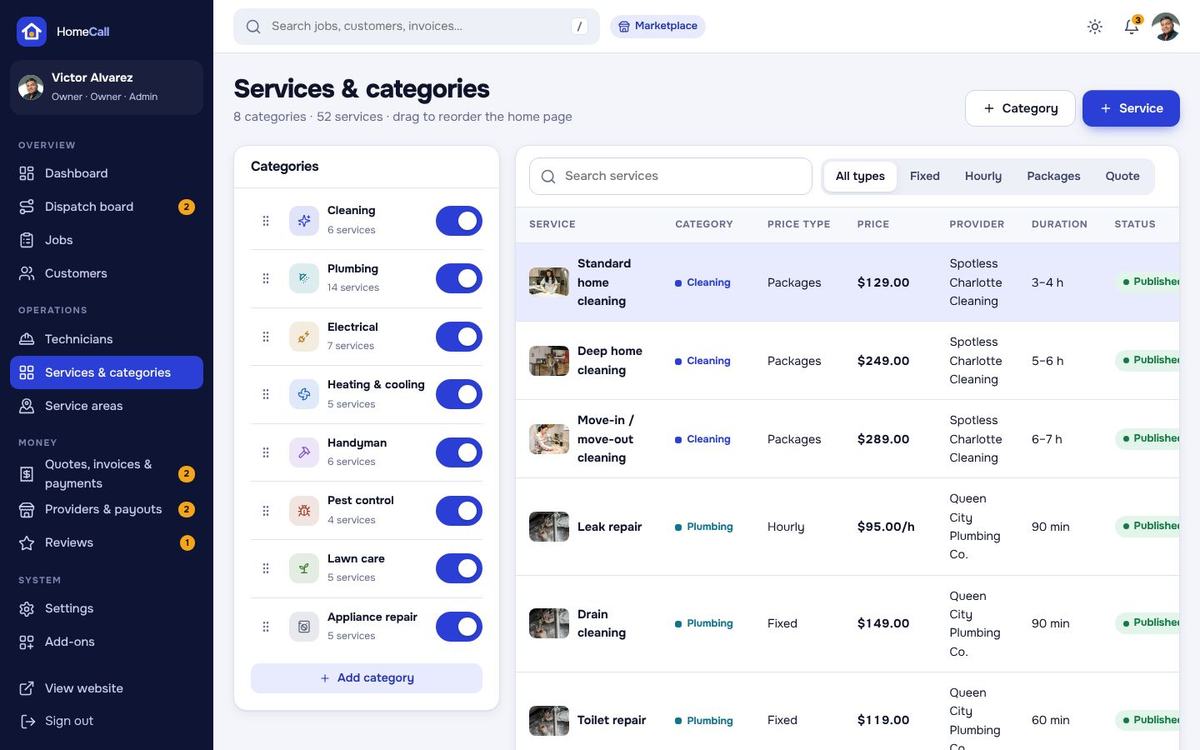
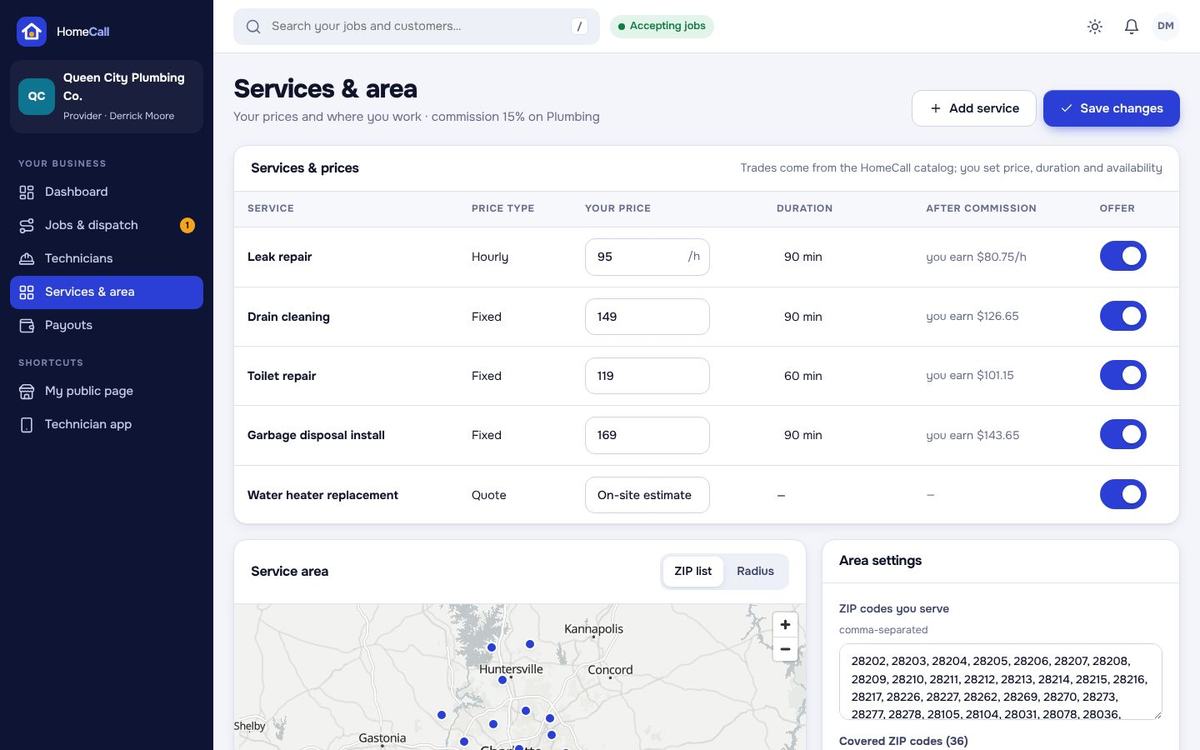
Services & categories: drag the categories into order, set their icon, colour, commission (Marketplace), checklist, booking questions and quote questions. A service has a price type – package, fixed, hourly (rate + minimum hours) or quote – a duration, packages, add-ons, “what's included”, FAQs, a gallery, a checklist and its own deposit percentage if you like. Providers see “you earn” after commission when they price their services.
Service areas & maps
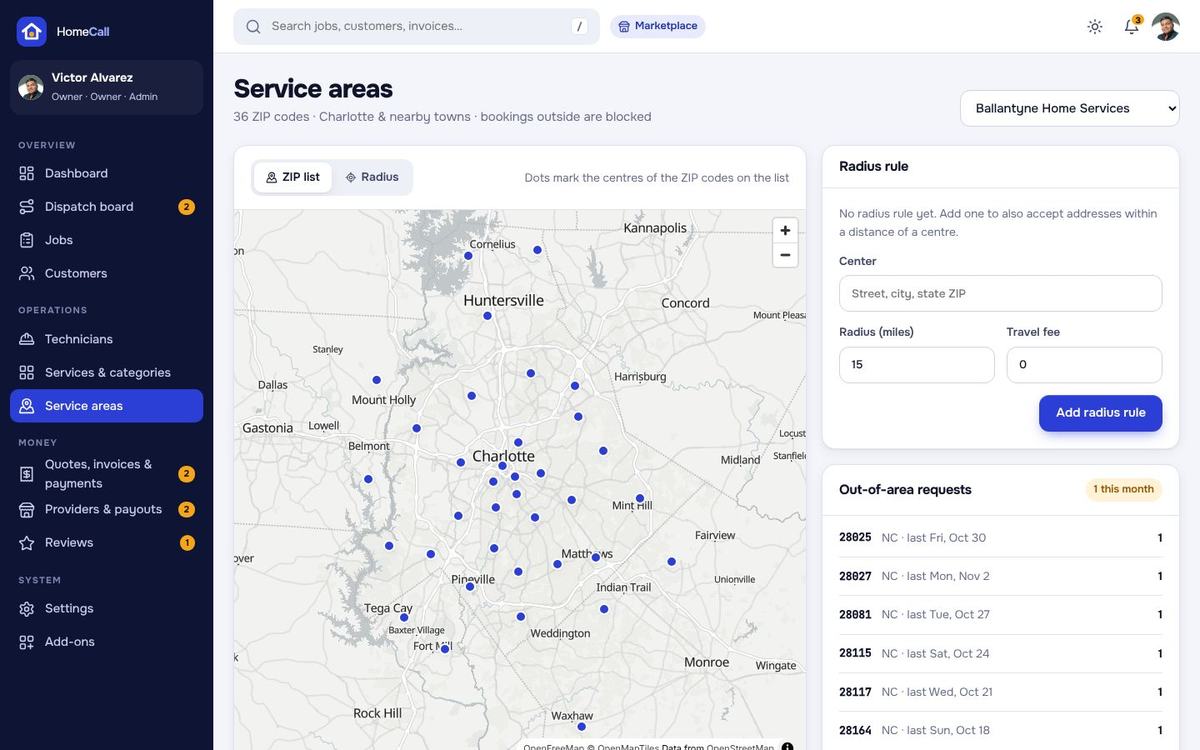
Service areas: an area is either a ZIP list or a radius (centre + miles) drawn on the map, with an optional travel fee and the trades it covers. The public ZIP check, the booking flow and the provider search all use these areas; US ZIP centre points are included, so radius areas work without geocoding. Customers outside every area can leave their e-mail – the out-of-area requests show here, so you see where to grow.
Maps use MapLibre GL with the free OpenFreeMap styles (positron in the light theme, dark in the dark theme) – no API key and no billing account. Change the styles, the centre and the zoom in Settings › Booking rules › Maps.
Quotes, invoices & payments
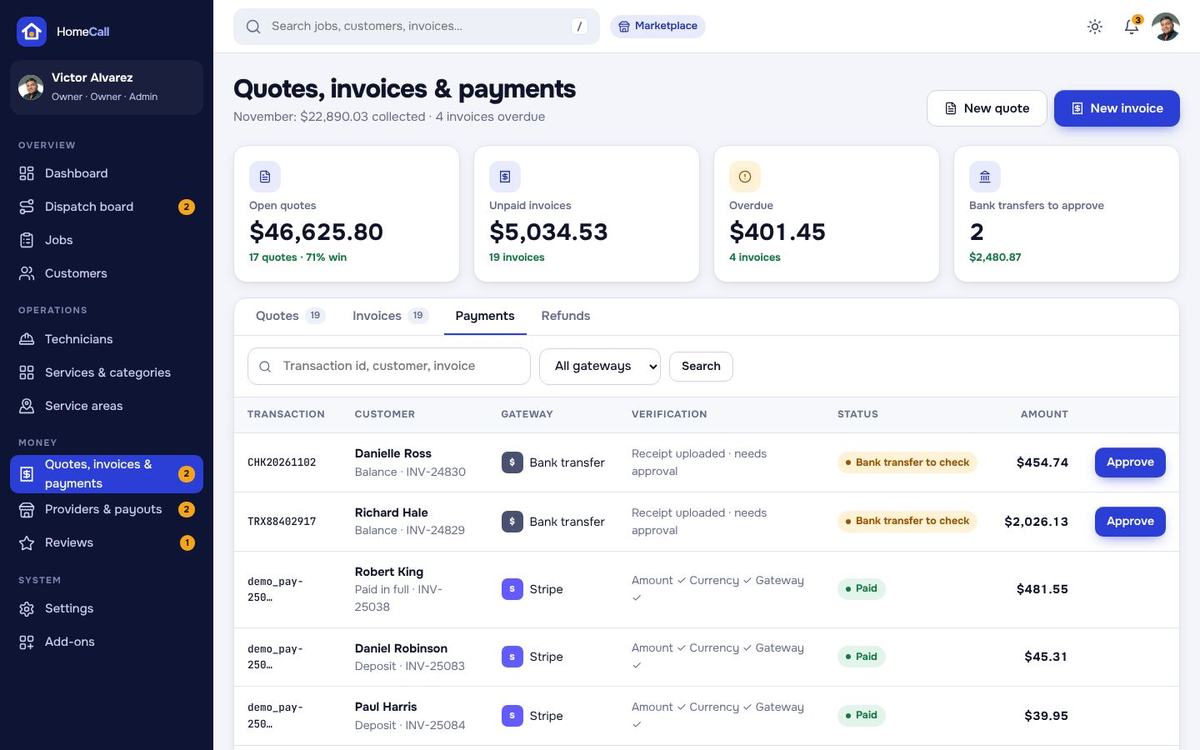
Every booking has one invoice from the start: it is the estimate until the job is done, then it is issued with the parts and labor added on site, the sales tax and the deposit already paid. Quotes, invoices & payments has three tabs:
- Quotes – quote requests; your office answers the ones for your own company.
- Invoices – open, paid and void invoices; send the pay link again, download the PDF.
- Payments – every payment with the gateway, the transaction id and a verification column; bank transfers to approve or reject, refunds.
Reviews
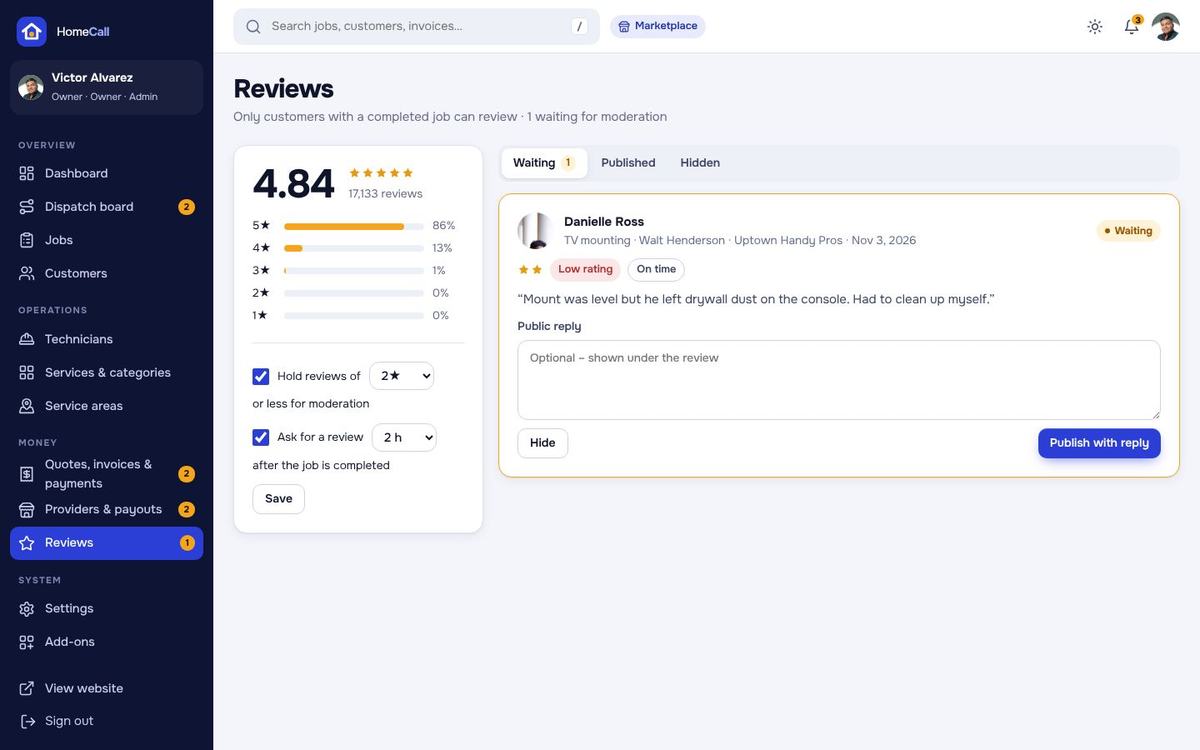
Customers review a finished visit with stars, highlight tags (a setting), text, photos and how their name is shown. Reviews with a low rating wait for moderation (you set from which rating); the rest are published at once. Write a public reply, hide or publish. The review request is sent automatically a few hours after the job is completed (setting on / off and the hours).
Providers & applications
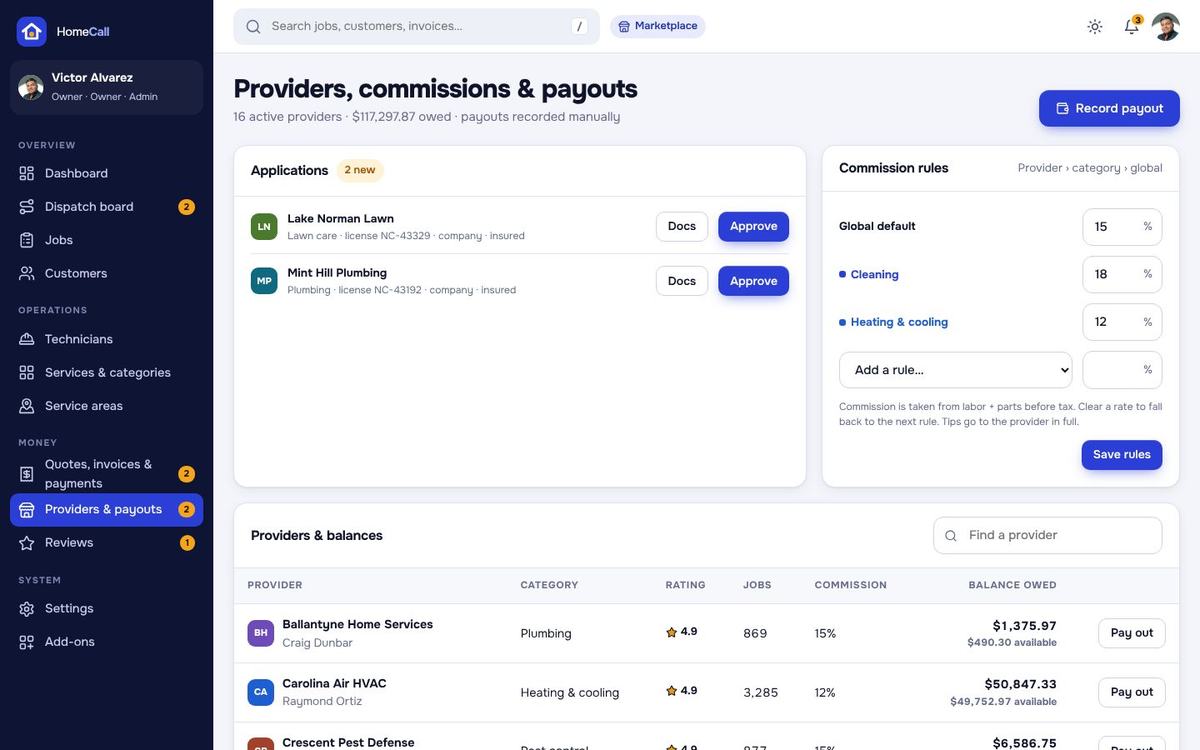
Marketplace mode. Companies and solo pros apply on Become a pro (business name and type, trade, ZIP code, licence number, a document such as an insurance certificate). Providers & payouts lists the applications to approve or reject, the active providers (pause / suspend), their rating, jobs, commission and balance. An approved provider gets a sign-in to the provider panel and a public page with a verified badge.
Commissions & payouts
- Commission rules – a global rate (15 % by default), a rate per category (for example cleaning 18 %, HVAC 12 %) and a rate per provider. The most specific rule wins; your own company pays none.
- Each verified online payment adds the provider's earning after commission to its balance. Cash and checks collected on site by the provider's technicians are recorded as commission the provider owes, so the balance is always right.
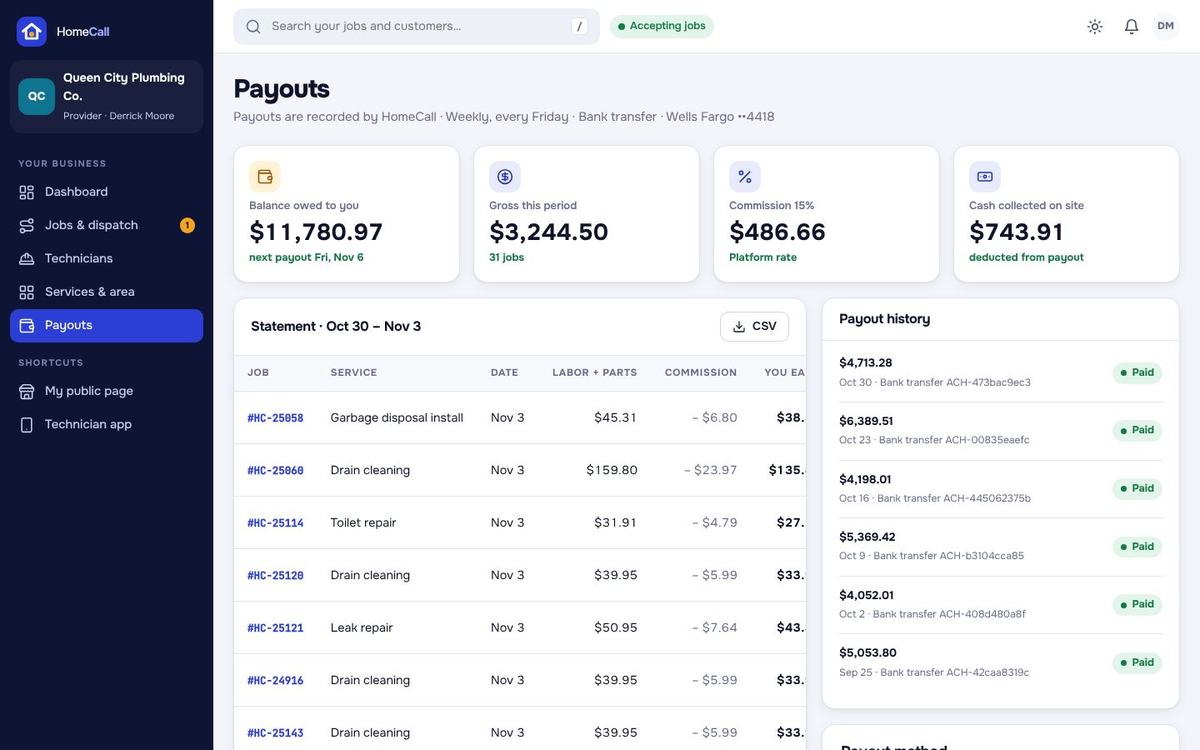
- An earning can be paid out after the hold days you set (Settings › Business mode). Record payout with the amount, the method (bank, PayPal, other) and your reference once you have paid the provider. The provider sees the statement per job and the payout history. Nothing is paid out automatically.
The provider panel
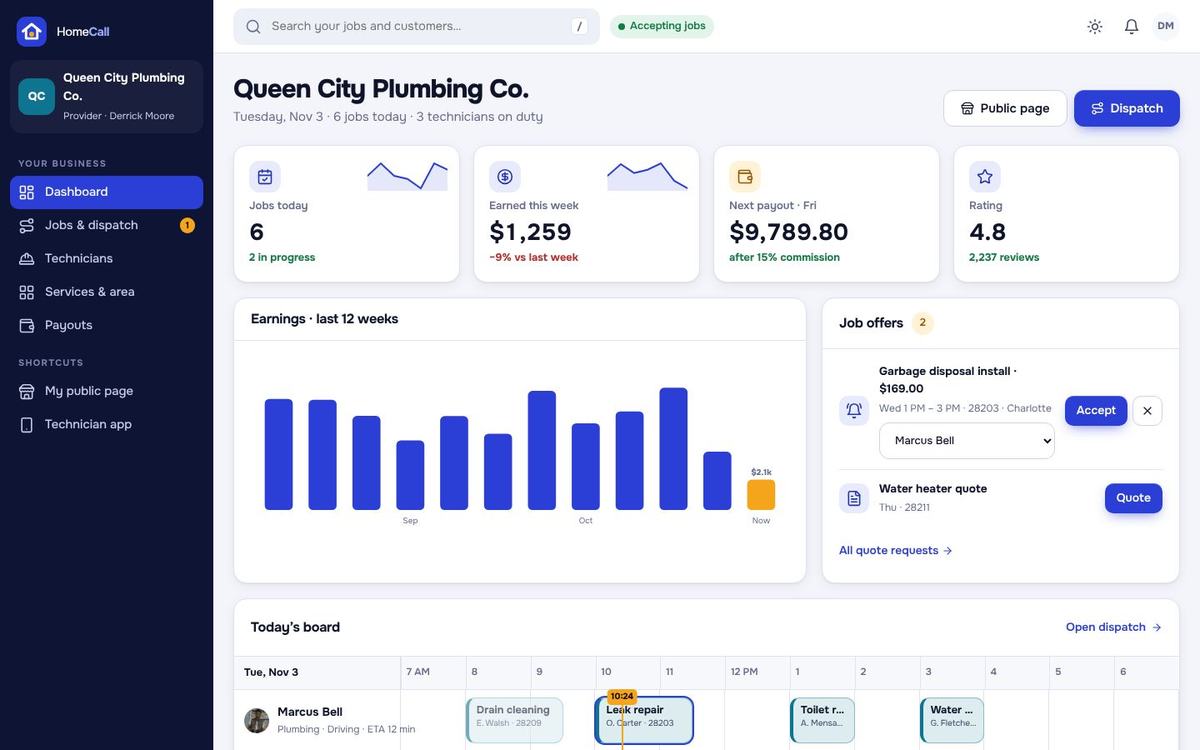
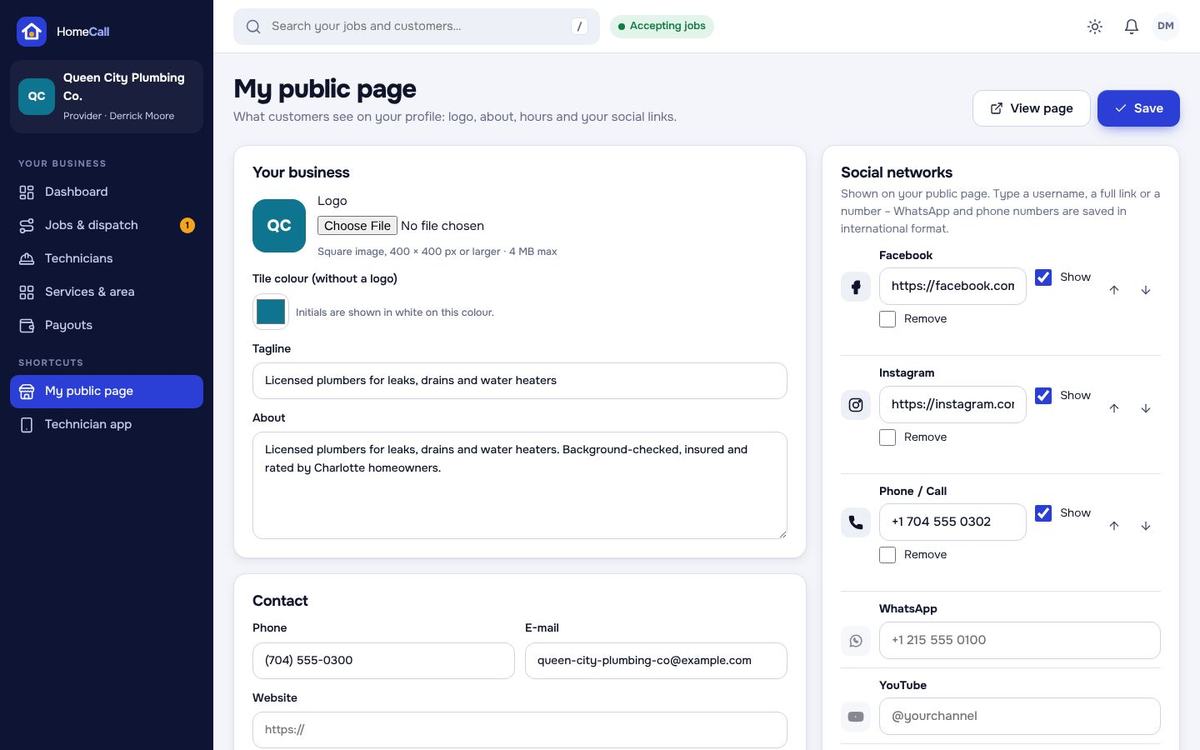
Providers sign in at /pro: a dashboard with KPIs, the next payout after commission, an earnings chart, booking requests to accept or decline and today's board; their own dispatch board with drag-to-assign; technicians with skills and working hours; services & area with their own prices; quote requests to answer; payouts with balance, commission, cash collected and statements; and their public page & social links.
US sales tax by state
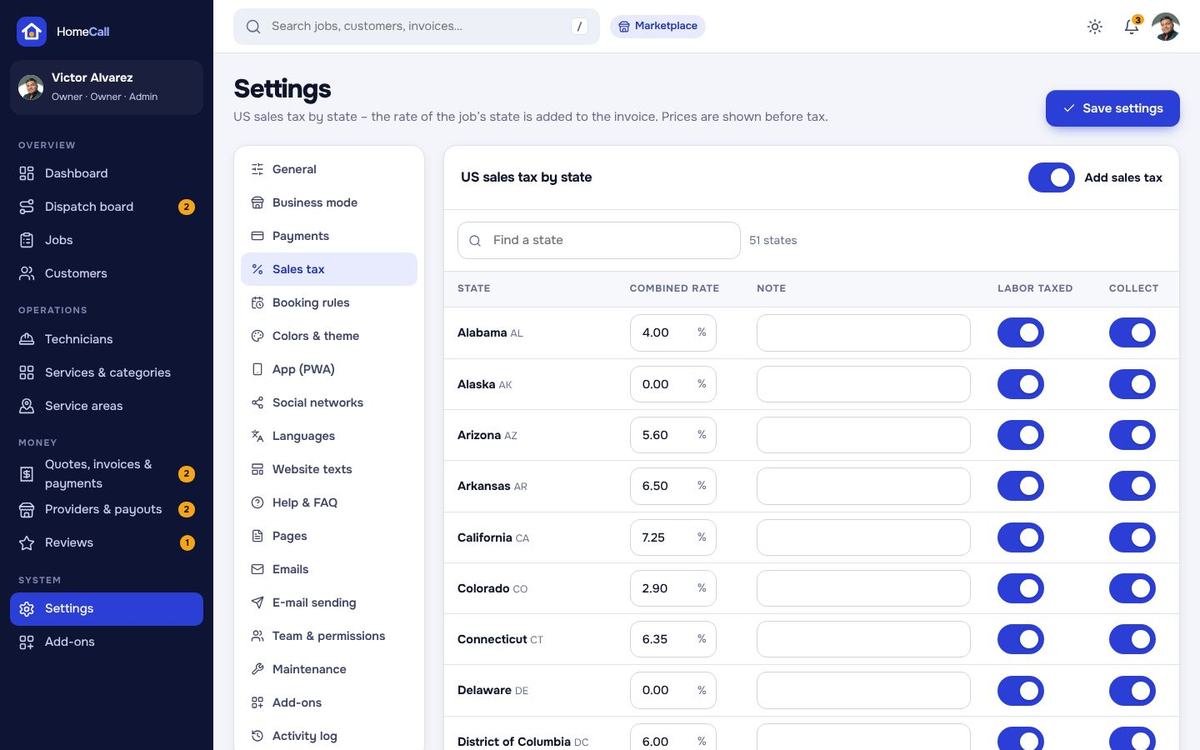
Settings › Sales tax: one row per state with the combined rate, a note and whether labor is taxed in that state (parts and materials are taxed where a rate is set). The state comes from the service address, so the service page, the booking summary, the invoice and the e-mails always show the same amounts. Switch sales tax off, or enter your own rates when you work outside the US.
Payments & webhook URLs
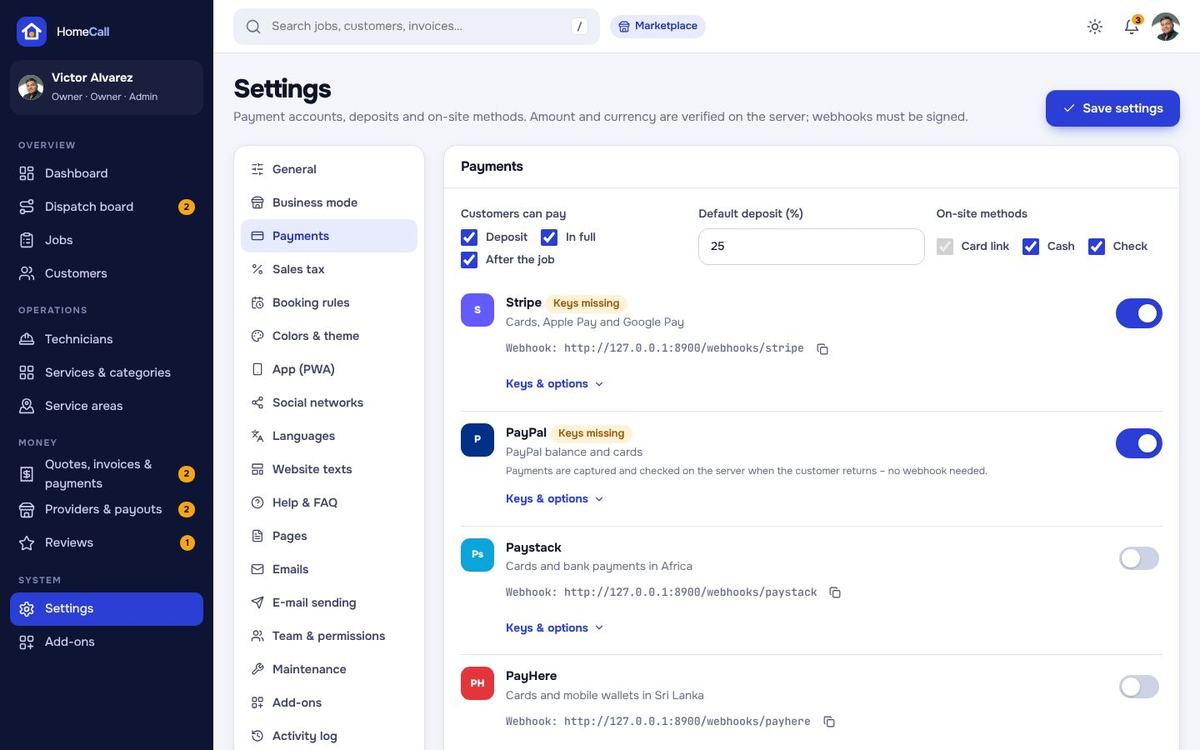
Admin › Settings › Payments: each gateway has its own card with on / off, test (sandbox) / live, the keys, the charge currency and the webhook URL to copy. Keys are stored encrypted and shown masked. On the same page you choose the payment options (deposit, full, after the job), the deposit percentage, and whether technicians may take cash and checks.
| Gateway | Keys | Webhook / notify URL | Events |
|---|---|---|---|
| Stripe (cards, worldwide) | Publishable key, secret key, webhook signing secret | https://book.example.com/webhooks/stripe | payment_intent.succeeded |
| PayPal | Client ID, secret | – (the payment is captured on your server when the payer returns) | – |
| Paystack (Nigeria, Ghana, Kenya, South Africa) | Public key, secret key | https://book.example.com/webhooks/paystack | charge.success |
| Razorpay (India: UPI, cards, net banking, wallets) | Key ID, key secret, webhook secret | https://book.example.com/webhooks/razorpay | payment.captured, order.paid |
| PayHere (Sri Lanka) | Merchant ID, merchant secret | https://book.example.com/webhooks/payhere (notify URL, sent automatically) | notify |
| Bank transfer | Bank name, account name, account number, routing, SWIFT, note | – | receipt upload + approval |
The charge currency of a gateway may differ from the site currency (for example INR for Razorpay): the amount is converted with the exchange rate of that currency and stored with the payment, and exactly that amount is checked when the gateway confirms it. The rates are set under Exchange rates on the same page.
Stripe
- Stripe Dashboard → Developers › API keys: copy the publishable and secret key into the Stripe card.
- Developers › Webhooks › Add endpoint: the URL from the card, event
payment_intent.succeeded. Copy the signing secret (whsec_…) into the card. - Switch the card to Live when you take real payments.
PayPal
- developer.paypal.com → Apps & Credentials: create an app, copy the Client ID and secret (Sandbox or Live) into the card. The order is captured and checked on your server when the customer returns.
Paystack
- Paystack Dashboard → Settings › API Keys & Webhooks: copy the public and secret key and paste the webhook URL from the card. Signatures are checked with the secret key.
Razorpay
- Razorpay Dashboard → Account & Settings › API Keys: Key ID and secret. Webhooks › Add new: the URL from the card, events
payment.capturedandorder.paid, and a webhook secret that you also paste into the card.
PayHere
- PayHere → Settings › Domains & Credentials: add your domain, copy the Merchant ID and the Merchant Secret. The notify URL is sent with every payment.
Bank transfer, cash & check
Bank transfer: the customer sees your bank details with the invoice number as reference, transfers the amount and uploads the receipt (image or PDF – kept private). The payment waits “in review”; the dashboard and Quotes, invoices & payments show the transfers waiting. Approve completes it exactly like an online payment (booking confirmed, commission, e-mails); Reject asks the customer to pay again.
Cash and check (settings on the Payments page): after check-in the technician records the amount (and the check number) in the app, up to the open balance. In Marketplace mode the cash shows on the technician's “cash to hand in” and on the provider's statement.
How payments are protected
- Prices, packages, add-ons, hours, travel fees, sales tax and the deposit are always worked out on the server from the stored services and settings, never taken from the browser. The gateway's answer is checked on the server: amount, currency, reference and status must match the stored payment.
- Webhooks are accepted only with a valid signature over the raw request (Stripe signing secret, Razorpay webhook secret, Paystack secret key, PayHere md5sig). Without a configured secret a webhook is refused and nothing changes.
- Each gateway transaction can complete only one payment; completion runs once under a database lock, so a webhook and the return page arriving together never complete a payment twice.
- Bookings are confirmed and provider earnings recorded only inside that verified completion. There is no way to mark a payment paid from the browser, also not in demo mode. Nothing renews automatically – repeat visits are paid one by one.
Every settings area
Every text, price, limit, list and colour of the site is a setting with its own field – nothing is fixed in the code.
| Area | What you set there |
|---|---|
| General | Site name, tagline, country, currency, time zone, date and time format, logo, word mark, browser icon, business details for invoices, opening hours, e-mail, phone, address, team alert e-mail, accounts & security (registration, sign-in links, password length, always https), search engines (title, description, share image, sitemap). |
| Business mode | Single company or Marketplace; provider applications on / off, payout hold days, smallest payout, payout schedule text, the “Become a pro” texts and earnings calculator, providers per quote request. |
| Payments | The six gateways, payment options, deposit percentage, cash and check, exchange rates. |
| Sales tax | On / off and the rate per state, labor taxed or not. |
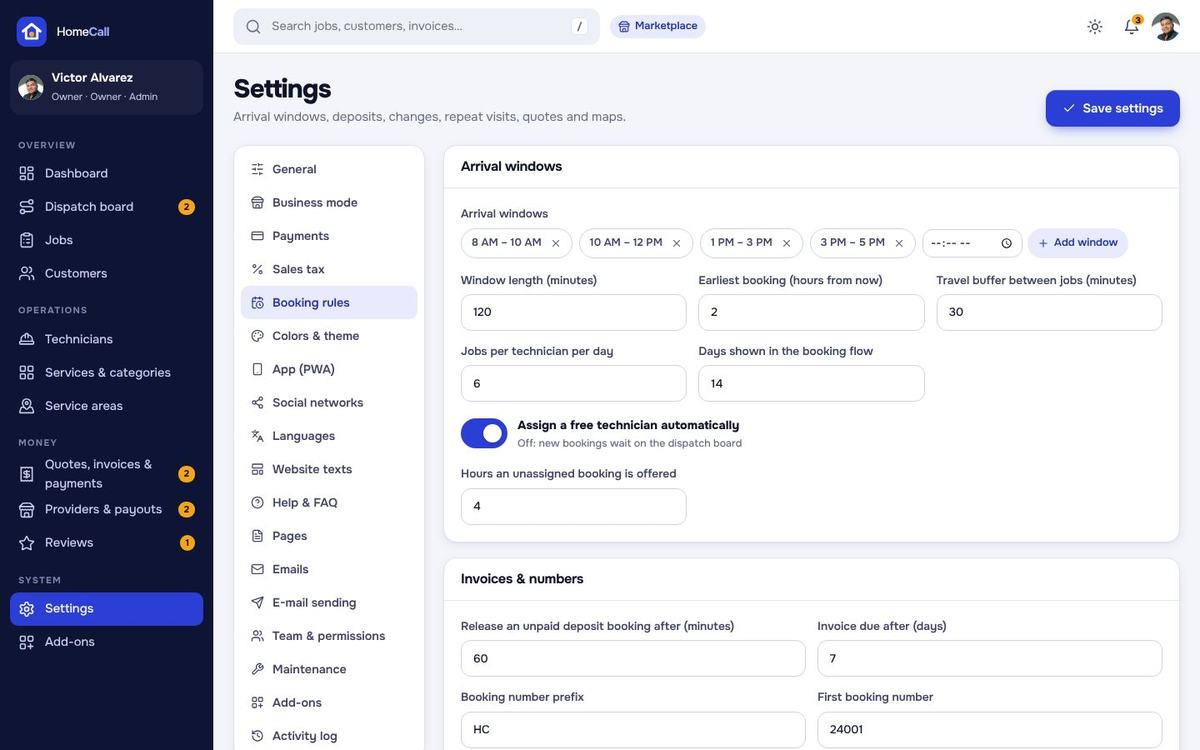
| Booking rules | Arrival windows, lead time, travel buffer, jobs per day, days ahead, auto-assign, offers, invoices & numbers, cancellation window and policy, repeat visits, reminders, quotes, photos, review tags, booking texts, maps. |
| Colors & theme | Presets, custom colours, default theme, theme switch, motion effects. |
| App (PWA) | App name, short name, icons, theme colour, start addresses of the website and the technician app, install prompt texts. |
| Social networks | The site's own links with icons, order, on / off, “Add network”. |
| Languages | Languages, default language, translation editor, auto-translate service. |
| Website texts | Top line, header menu, home texts and photo, how it works, trust points, popular services tabs, app banner, footer, sign-in and help texts. |
| Help & FAQ · Pages | Help topics and questions (customers and pros), your pages (about, terms, privacy …) in the footer columns. |
| Emails · E-mail sending | Branded templates and bell messages; SMTP and a test e-mail. |
| Team & permissions | Staff accounts and the sections they may open. |
| Maintenance · Add-ons · Activity log | Maintenance page, backups, update, scheduled tasks, panel addresses; add-on packages; who changed what. |
Booking rules
| Setting | Default | Effect |
|---|---|---|
| Arrival windows | 8:00, 10:00, 13:00, 15:00 · 120 min | The windows customers pick from. |
| Earliest booking | 2 hours from now | Customers cannot book a window that starts sooner (your team can). |
| Travel buffer | 30 minutes | Free time kept between two jobs of a technician. |
| Jobs per technician per day | 6 | Also per technician in the technician editor. |
| Assign automatically | On | A free technician is assigned at booking; off = the job waits on the dispatch board. |
| Deposit | 25 % | Payments page; a service can have its own percentage. |
| Release unpaid deposit bookings | 60 minutes | The window is freed again when a deposit is not paid. |
| Free reschedule / cancel | 24 hours before the window | Customers change their visit themselves until then. |
| Visit reminder | 6:00 PM the evening before | E-mail + bell; empty = no reminders. |
| Providers per quote request | 3 | Marketplace: how many providers may quote one request. |
Colors, theme & dark mode
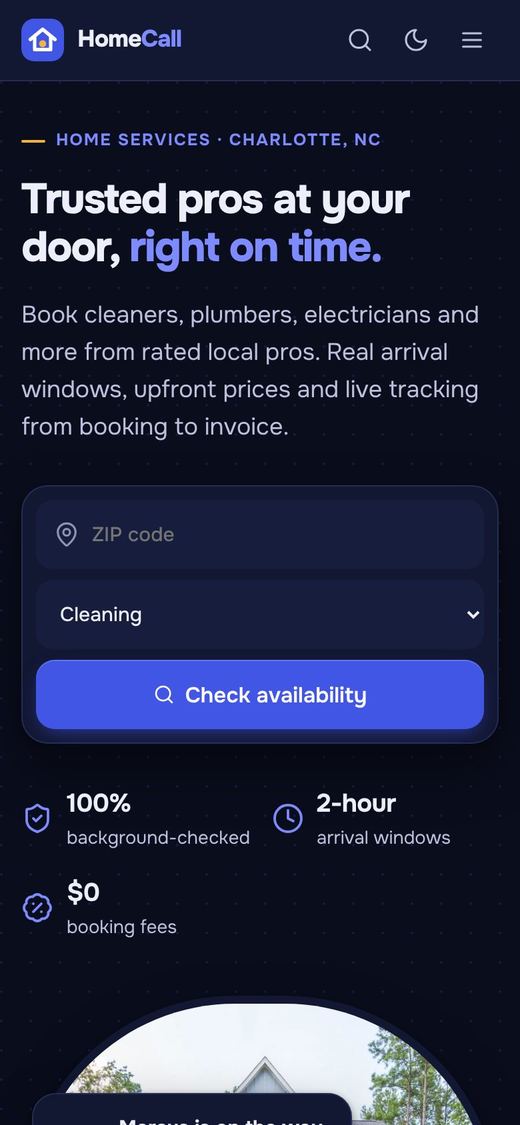
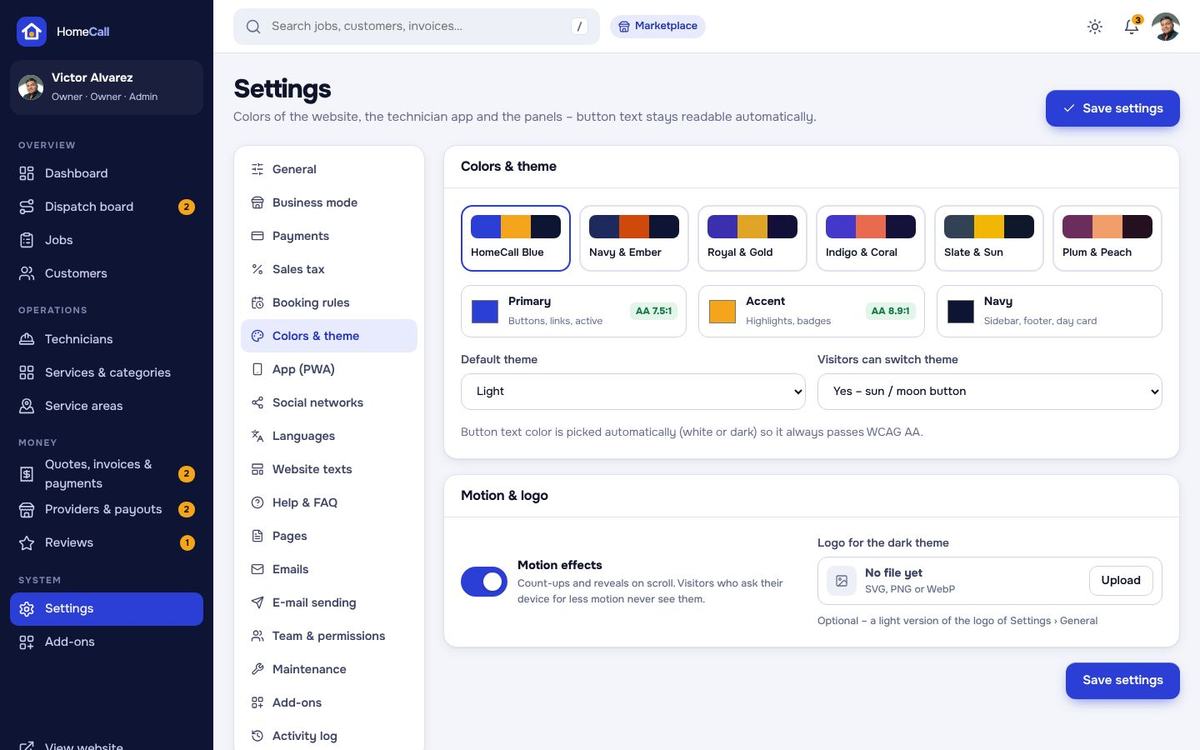
Settings › Colors & theme: pick a colour preset (HomeCall Blue, Navy & Ember, Royal & Gold, Indigo & Coral, Slate & Sun, Plum & Peach) or set your own primary, accent and navy (sidebar and footer) colours with the pickers. The page recolours as you choose, and the button text colour is picked automatically so it stays readable (WCAG AA).
The site opens in the light theme by default; visitors switch to dark with the sun / moon button and the choice is remembered on their device. Set the default (light, dark or follow the device), hide the switch, or turn the motion effects off.
Installable app (PWA)
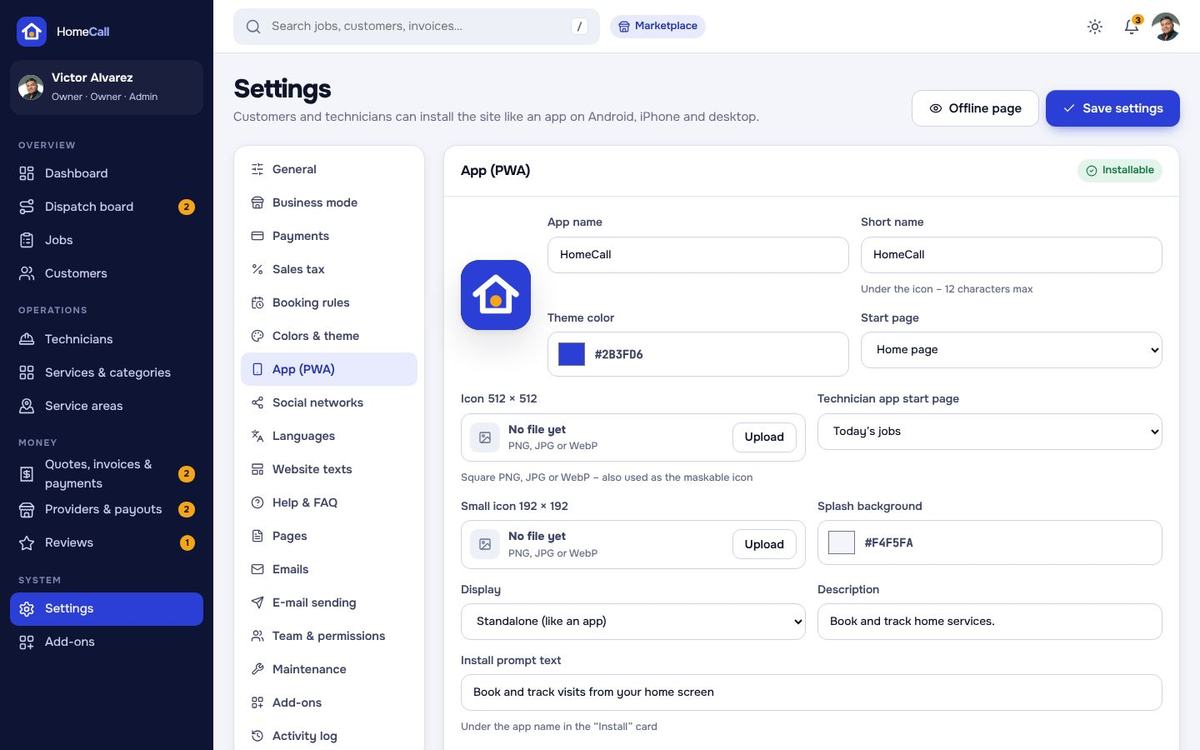
The website and the technician app install as apps on phones and computers: an “Install app” prompt on Android and desktop browsers, an “Add to Home Screen” hint on iPhone, their own icons and an offline page. Only static files (styles, scripts, fonts, icons) are kept for offline use – never accounts, bookings or invoices. In Settings › App (PWA) set the app name, short name, icons, theme colour, the start address of the website and of the technician app, and the prompt texts. HTTPS is needed.
Languages & auto-translate
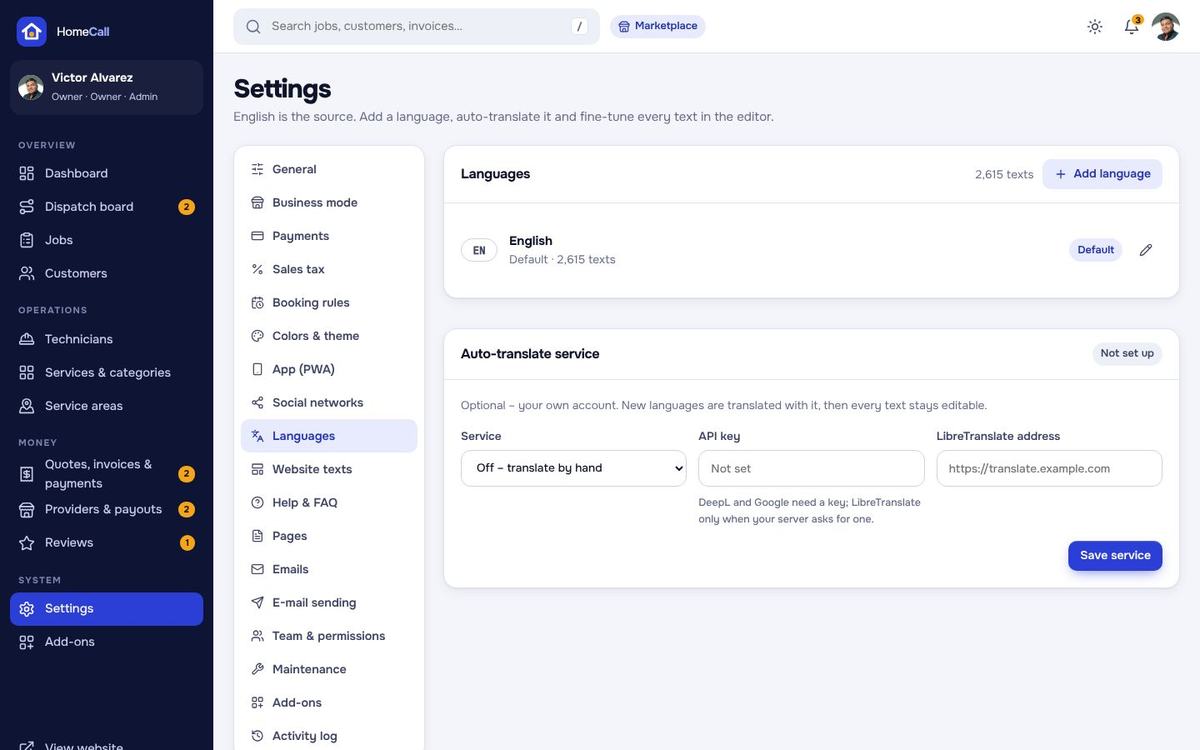
HomeCall ships in English. To add a language (for example Spanish, es) open Settings › Languages, add it, and either translate the texts in the translation editor or press Auto-translate with DeepL, Google Cloud Translation or a LibreTranslate server (key in Auto-translate service). Every translation stays editable. Visitors switch the language in the footer; set the default language for new visitors.
E-mail & templates
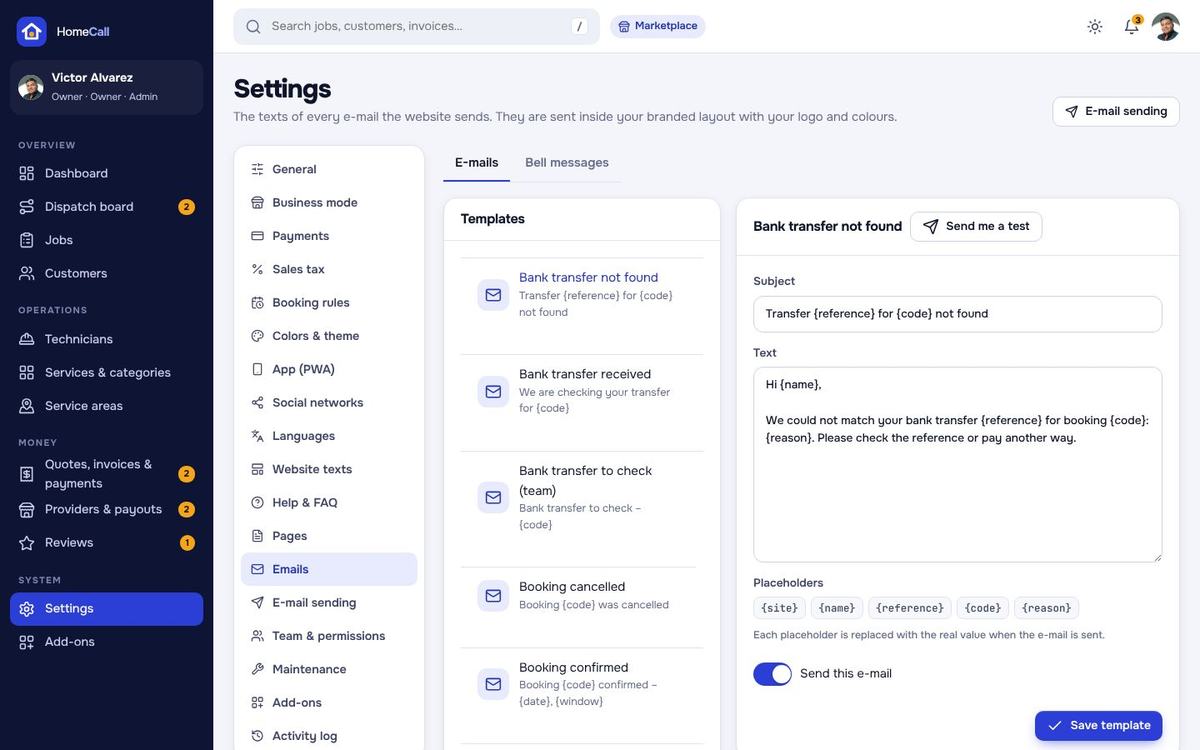
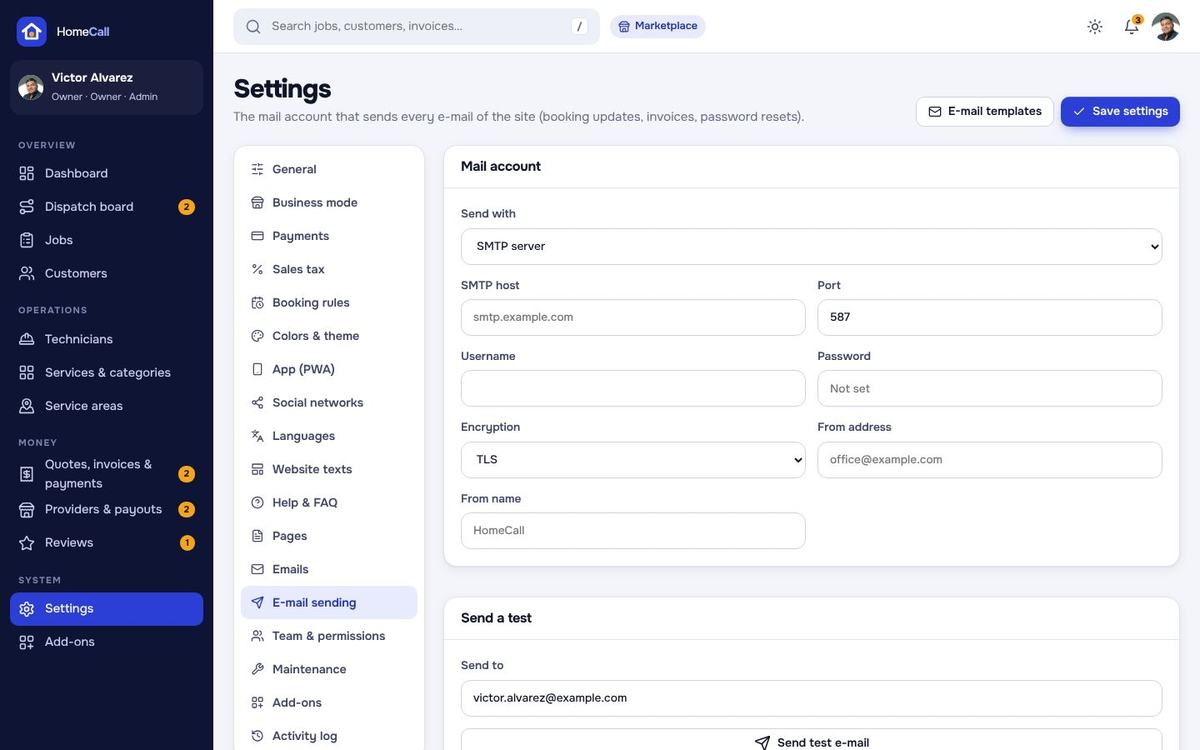
E-mail sending: SMTP host, port, encryption, user, password and sender, plus a test e-mail. Emails: the branded HTML templates – booking confirmed, visit reminder, technician on the way, rescheduled, canceled, job completed, review request, invoice / pay link, payment received, bank transfer received or not found, new quote, sign-in link, password reset, technician and team invites, the provider notices (new booking, quote request, approved, declined, paused, payout recorded) and the team's notices – and the bell messages, each editable with placeholders. Customers choose which updates they receive in their account.
Team & permissions
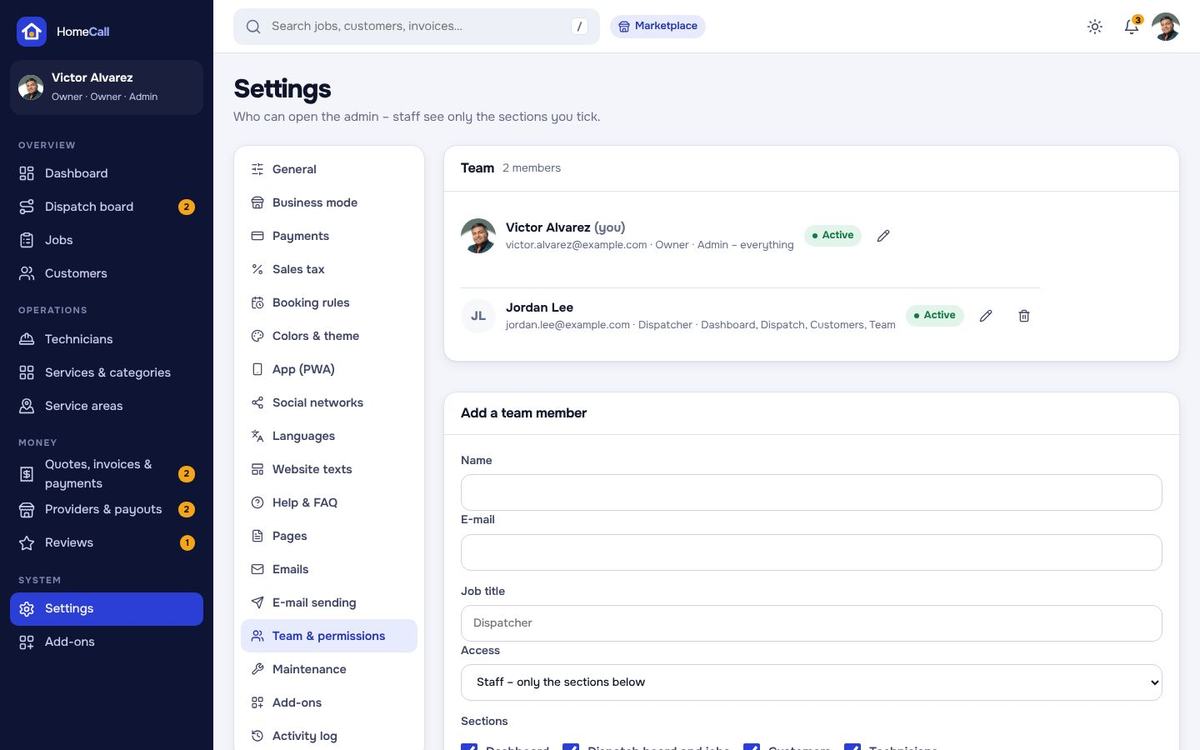
Settings › Team & permissions: add office staff (dispatchers, billing) with the sections they may open – Dashboard; Dispatch board and jobs; Customers; Technicians; Services, categories and service areas; Quotes, invoices and payments; Providers, commissions and payouts; Reviews; Settings. Menus and pages they may not open are hidden and refused.
Add-ons
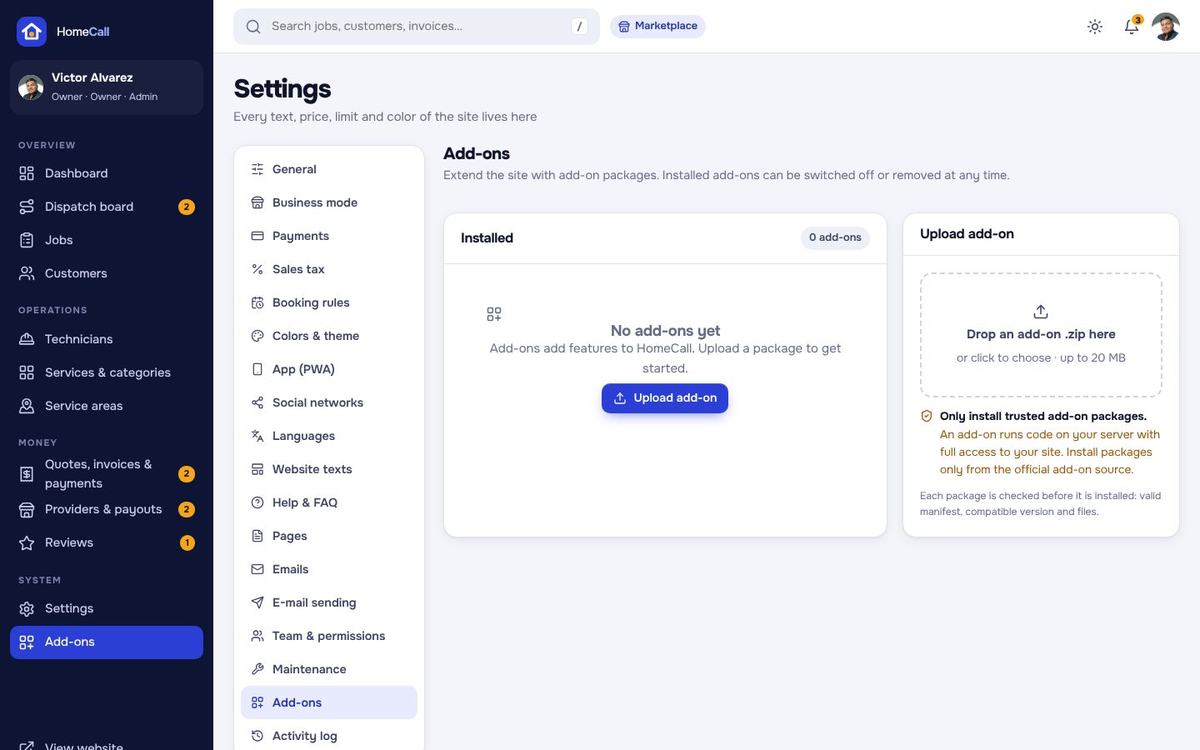
Admin › Add-ons: upload an add-on .zip, switch it on or off, open its settings or remove it. Only install add-on packages from a source you trust – an add-on runs code inside your site.
For developers: an add-on is a zip with addon.json at its root and optional src/ (PSR-4, namespace Addons\<StudlySlug>\), views/, routes.php and assets/ (published to public/assets/addons/<slug>).
{
  "slug": "gift-cards",
  "name": "Gift Cards",
  "version": "1.0.0",
  "requires": "1.0.0",
  "description": "Sell gift cards for home services.",
  "provider": "Addons\\GiftCards\\GiftCardsServiceProvider"
}
The service provider adds content to page slots (head, body.end, service.after_price, booking.after_summary, booking.after_payment, tech.job.after_checklist, dashboard widgets), menu items in the admin, provider, account and technician menus, a settings page, and listens to the events BookingPlaced, BookingStatusChanged and InvoicePaid. Uploads are checked: size limit, no paths outside the add-on folder, no links, only known file types, and only static files in assets/.
SEO & speed
- Titles and descriptions per page, service and category; share images.
/sitemap.xmland/robots.txt; schema.org Organization, WebSite (with site search), BreadcrumbList and FAQPage data.- WebP images with lazy loading; self-hosted fonts and map library; maps load only where they are shown; long-cached static files.
Backups & maintenance
Settings › Maintenance: a maintenance page with your own title and message (the team can still sign in), backups (create and download a compressed SQL backup, automatic daily or weekly backups and how many to keep), the update card, the scheduled tasks with the last cron run, and the addresses of the admin panel, the provider panel and the technician app.
Demo mode
For a public demo install with the demo data and set DEMO_MODE=true and APP_DEBUG=false in .env. Then:
- The sign-in page shows one-click demo logins (admin, provider, technician, customer); a ribbon says it is a demo.
- Settings, gateways, the team, uploads, deletes, add-ons and the business mode are locked. Visitors can still use the real flows: the ZIP check, booking a visit (ending with a bank transfer that waits for approval), quote requests, rescheduling, chat, reviews; the technician's on the way, check-in, checklist, parts and signature; drag-to-assign on the dispatch board, bank-transfer approval and review moderation. No e-mails are sent.
- The cron job keeps the demo current at any hour:
hc:demo-todayevery 5 minutes moves today's board along with the clock (on the way → in progress → paid);hc:demo-resetevery 6 hours reloads fresh demo data and keeps the business mode. Runphp artisan hc:demo-reset --forceonce after installing.
Updating
- Make a backup (Settings › Maintenance › Backups) and keep a copy of
.env,public/uploads,storage/app/privateandaddons. - Open Settings › Maintenance and upload the update zip with Upload files (or copy its files over your installation by FTP). Only program files are replaced;
.env, uploads, storage, add-ons and the database stay untouched. - Press Run update – or run
php artisan hc:update. New database changes, default settings and templates are added without changing yours. - Reload the site with Ctrl + F5.
Artisan commands
| Command | What it does |
|---|---|
php artisan hc:update | Apply database changes and new default settings after uploading new files. |
php artisan hc:admin-password you@example.com | Set a new password for an admin or staff account. |
php artisan hc:backup | Write a compressed SQL backup to storage/app/private/backups. |
php artisan hc:daily | The 10-minute task (unpaid bookings, offers, quotes, repeat visits, reminders, review requests). |
php artisan hc:prune | Remove old notifications and activity rows. |
php artisan hc:demo-reset --force · hc:demo-today | Demo mode only: reload the demo data / keep today's demo current. |
php artisan hc:scan-strings | For developers: collect the translatable texts after changing views. |
FAQ & troubleshooting
- Can I switch between Single company and Marketplace later?
- Yes – Settings › Business mode. Bookings, customers, invoices and reviews stay; provider pages, the provider panel, commission and payouts appear or hide.
- Why does a day show no free arrival windows?
- A window opens only when a technician with the service's skill is free. Check the technicians' working hours, skills and time off, the jobs per day, the lead time and that the address is inside a service area.
- Do I need a Google Maps key?
- No. The maps use MapLibre with free OpenFreeMap styles. You can enter other MapLibre-compatible style addresses in Booking rules › Maps.
- The page shows “500 Server Error”.
- Look into
storage/logs. Most often a folder is not writable (storage,bootstrap/cache,public/uploads,addons) or the PHP version is below 8.3. - E-mails do not arrive.
- Enter SMTP details in E-mail sending and send a test e-mail. Many hosts block PHP's own mail function.
- Reminders are not sent / unpaid bookings stay.
- The cron job is missing or uses a wrong path – Settings › Maintenance shows when it last ran.
- A payment is not marked paid.
- Check that the webhook URL and secret in the gateway's dashboard match the card in Payments, and that the site runs on HTTPS.
- The technician's position does not show on the map.
- The technician app needs HTTPS and the location permission, and the technician must be on duty. The position is shared only while on duty.
- The “Install app” button does not appear.
- The site must run on HTTPS. On iPhone use Share › Add to Home Screen – the site shows a hint.
- Can I work outside the US?
- Yes – pick your country, currency and time zone in the installer or in Settings › General, and switch sales tax off or enter your own rates.
- I forgot my password.
- Use “Forgot password” on the sign-in page, or
php artisan hc:admin-password you@example.com.
Credits & licences
- Laravel and its packages – MIT licence (
vendor/). - Maps: MapLibre GL JS – BSD 3-Clause licence; map styles and tiles: OpenFreeMap, OpenMapTiles, © OpenStreetMap contributors.
- US ZIP code centre points: U.S. Census Bureau ZCTA Gazetteer (public domain).
- Icons: Lucide – ISC licence.
- Fonts: Onest and JetBrains Mono – SIL Open Font License.
- Demo photos: free stock photos (Pexels licence) – listed in
public/assets/licenses/PHOTO-CREDITS.txt. Replace them with photos of your own team and work.
The licence files are in public/assets/licenses/.
Changelog
1.0.1 – November 2026
Updates: the one-click update (Settings › Maintenance) and php artisan hc:update run correctly and keep the business mode.
1.0.0 – November 2026
Initial release: home-services booking and field-service script with Single company or Marketplace mode; ZIP / radius service areas with travel fees and a public ZIP check; packages, fixed, hourly and quote prices with add-ons; real 2-hour arrival windows from technician availability; deposit, full or pay-after-the-job payments; repeat visits without auto-renew; quote requests answered by up to 3 providers; dispatch board with drag-to-assign and live map; technician app (PWA) with on the way, check-in timer, checklist, photos, parts and labor, signature and payment on site; live tracking for customers; invoices with US sales tax by state and pay links; Stripe, PayPal, Paystack, Razorpay, PayHere and bank transfer with signed webhooks, cash and check; provider panel, commissions and recorded payouts; reviews with moderation and replies; light and dark theme, colour presets, installable app, social networks, languages with auto-translate, staff permissions, add-ons, backups, one-click update and demo mode.
Social networks
Settings › Social networks: a built-in list with icons – Facebook, Instagram, X, YouTube, TikTok, LinkedIn, WhatsApp, Phone / Call, Telegram, Threads, Pinterest, Snapchat, Discord, E-mail, Website and more. Switch each on or off, drag to reorder, replace an icon, or Add network with a name, link or number and your own icon (SVG, PNG or WebP). WhatsApp and phone numbers are turned into working links. The links show in the footer, on the help page and in e-mails.
In Marketplace mode every provider picks its own links in Provider panel › Public page; they show on the provider's page.